How do I know that the Analytics JavaScript is on all of my pages?
Summary
To verify that the Siteimprove Analytics JavaScript is on all of your pages, you can either use a pre-configured policy in the Policy Library to identify pages missing the script or use browser developer tools to confirm the script is loading on individual pages.
Overview
To make sure that Siteimprove's Analytics JavaScript is on all of your pages to collect data, you can utilize a pre-configured policy in the Policy Library as described below.
Note: You can also use the Google Chrome developer tools to inspect a page's network activity and check if the Siteimprove Analytics code is loading on a specific page.
Method 1: Use a Policy to Find Pages Without the Script
Using Policy to search for Pages without the Siteimprove Analytics script
To activate the policy, take the below steps:
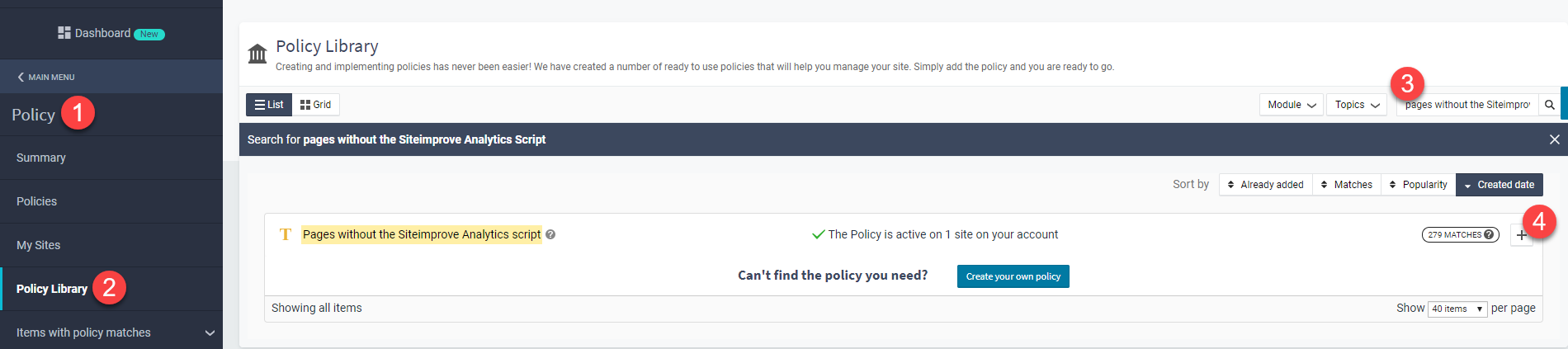
- Select Policy from the main menu.
- From the sidebar menu, select Policy Library.
- Using the search solution, search for: Pages without the Siteimprove Analytics script.
- Activate the policy by adding it to your policy collection.
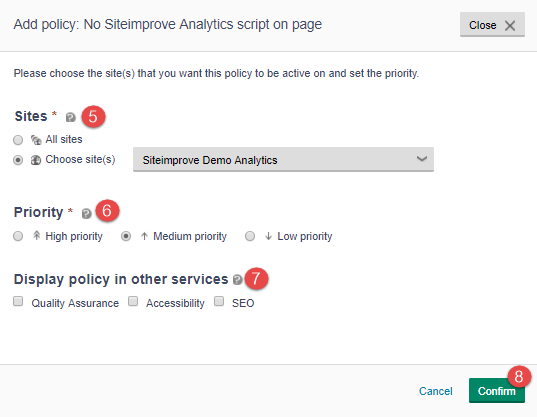
- Select on which site(s) on your account the policy should be activated.
- Prioritize the policy based on importance. By default, policies are prioritized at a medium level.
- Choose if you want the policy to be displayed in other modules of the Siteimprove Intelligence Platform.
- Confirm the setup to run the policy.
Method 2: Use Tag Manager (TM) or Google Tag Manager (GTM)
If you're using TM software, you will need to create your own custom policy to search for pages that do not include the TM script.
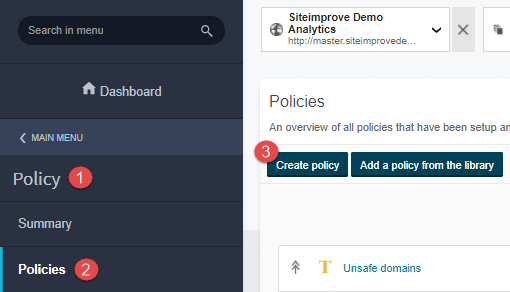
- Select Policy from the main menu.
- Select Policies from the sidebar menu.
- Click on the blue Create policy button.
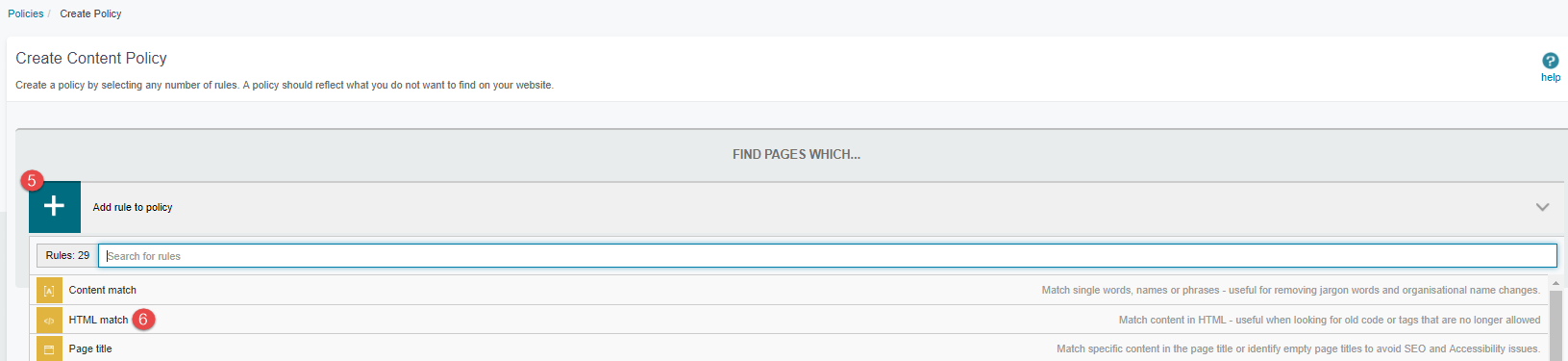
- Choose the Content policy category.

- Add a rule to the policy.
- Select HTML match.
- Use the toggle, and choose Exclude (will appear in the color red). This means that the policy will find pages that do not include the TM script.
- Insert the script of the tag management software you use.
- Fill out the necessary information.
- Save your changes.
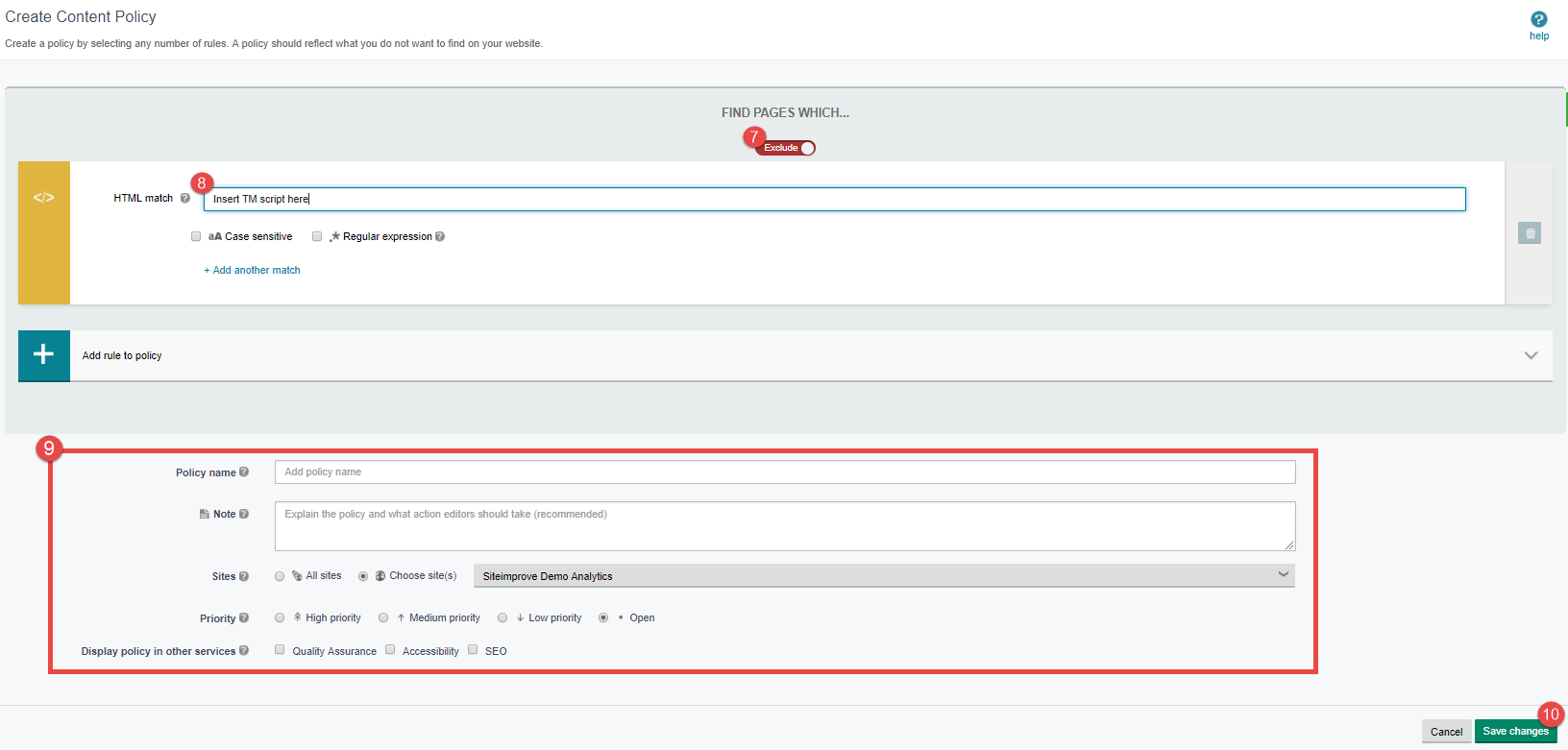
The Policy will now be run across your site(s).
Alternative Method: Use Browser Developer Tools
You can also use the Google Chrome developer tools to inspect a page's network activity and check if the Siteimprove Analytics code is loading on a specific page.
Expected Result
- You will identify pages missing the Analytics JavaScript
- The policy will list affected pages within your crawl
- You can confirm whether tracking is properly implemented across your site
Important Notes
- Only pages that are included within the crawl will be displayed
- Excluded pages (pages exempted from your crawl) will not be shown
- Login/logout pages do not need an Analytics script. If those types of pages are showing as pages without JavaScript, you can assume the script is on all pages
What to Do Next
- Review pages flagged as missing the script
- Update your implementation to ensure full coverage
- Re-run the policy to confirm resolution
Did you find it helpful? Yes No
Send feedback