CMS Plugin error: Missing access to page
Summary
You may have come across the "Missing access to page" error message when using the Siteimprove CMS Plugin. This article is intended to help you troubleshoot the issue. 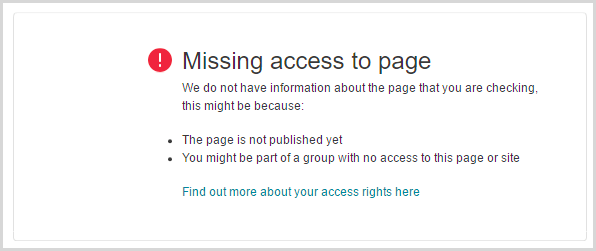
Symptoms
You may have come across the "Missing access to page" error message when using the Siteimprove CMS Plugin.
Possible Causes
This error message may appear if:
- You have not published the page.
- The page is not crawled in the platform due to several reasons some of which are listed below:
- A crawl of your site is taking place, therefore the crawler may not see the page.
- The page was published before a scheduled crawl has taken place or in the time between the last crawl and the installation of the plugin.
- The page was published but not crawled in the platform upon publishing it.
- We are not crawling the site.
- There is an issue with the crawl causing the page not to be crawled even though it is published.
- You have a cache issue.
- You do not have the correct user rights.
- The plugin isn't configured correctly.
Troubleshooting Steps
Check whether the page is published
If the page is not published you will receive this error.
Check whether the page is crawled
Check that the page is crawled in the Siteimprove platform.
You can do this by doing a search for the published page URL under Quality Assurance > Inventory > Pages. If the page is not being crawled in the Siteimprove platform you will receive the "Missing access to page" error.
Re-check the page
Re-check the page for issues if the option is available.
That will recheck the page in the platform under Quality Assurance > Summary > Single Page Check (where you can check that it is crawled) and results should display in the plugin once this is complete.
Verify user rights
Confirm that you have the correct user rights within the Siteimprove platform.
If you don't have access to the page in the platform then you won't have access to the plugin. See User Roles & Rights.
Verify plugin configuration
Check that the plugin is configured correctly.
Resolutions
Page is not published
Resolution:
Publish the page and ensure that the page is crawled in the Siteimprove platform. See Check whether the page is crawled.
Page is not crawled
Resolutions:
- If the page is published, but not yet crawled, as the scheduled crawl hasn't been done yet or the page was not crawled in the platform upon publishing, then you can add it under Quality Assurance > Summary > Single Page Check, and once that check is complete there results for the page should show in the plugin. Otherwise, you can wait for the next full site recrawl.
- If you add the URL under Quality Assurance > Summary > Single Page Check and it still won't crawl there is likely an issue with the crawl.
- If we are not crawling the site so you can't find the page, work to add the site in the platform see Adding a Site (Tips & Tricks).
Plugin configuration issues
Resolution:
Consult with the CMS plugin installation guide (if applicable) or whoever installed the plugin (in the case of vendor or third-party involvement) to confirm that the configuration is set up correctly. Installation guides and contacts can be found under the corresponding plugins on the Siteimprove CMS plugin page.
Escalation / Contact Support
If you add the URL under Quality Assurance > Summary > Single Page Check and it still won't crawl there is likely an issue with the crawl. In this case please submit a support ticket.
If you are still running into the issue after that, submit a support ticket.
Related Articles
Did you find it helpful? Yes No
Send feedback