How do I reset my Siteimprove password?
Summary
If you have been locked out after multiple unsuccessful login attempts, your account will automatically reset after 3 minutes. You can then try to log in again once the 3-minute period has passed.
Prerequisites
The reset password email link expires in 24 hours. If you don't see the email, please check your email 'spam' folder.
Reset your password (Forgotten password)
If you have forgotten your Siteimprove password, follow the steps below:
- Go to the Siteimprove login page.
- Click on ‘ Forgot password ’.
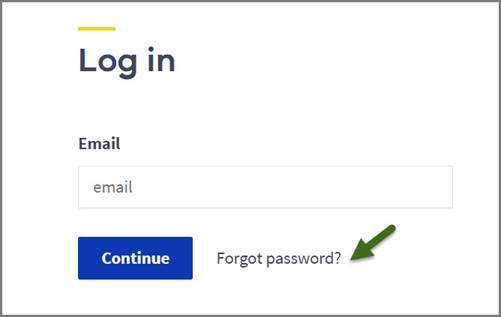
- Enter your email address.
- Answer the Captcha question if it's presented.
- Click on the ‘ Send reset password email ’.
- Open the email received from Siteimprove.
- Click the link within the email.
- Enter your new password and confirm to reset your password.
Change your password (while logged in)
If you have access to the Siteimprove platform and you’d like to change your password, follow the steps below:
- Click on your name within the top right of the Siteimprove platform.
- Select “ My Profile ”.
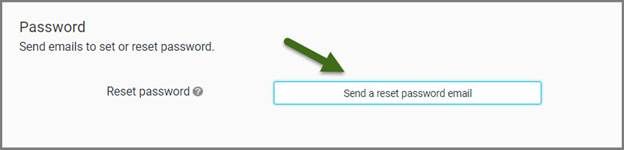
- Click on the ‘ Send a reset password email ’ button under the password section of the profile page.
- Open the email received from Siteimprove.
- Click the link within the email.
- Enter your new password and confirm to reset your password.
Additional notes
If you have any questions regarding this, contact your Customer Success Manager directly or submit a request and we'll get in contact with you.
Did you find it helpful? Yes No
Send feedbackSorry we couldn't be helpful. Help us improve this article with your feedback.