How to Ignore and Restore Policy Matches
Summary
To stop a Policy from flagging specific pages or assets, ignore the match directly in My Policies, or reverse that decision at any time to restore it for re-evaluation on the site's next crawl.
Applies To (Environment)
- Product / Service: Siteimprove Policy
- Version: N/A
- Platform / OS / Browser: Siteimprove web platform
- User role / permissions: Policy management access
- Preconditions: A policy has already been created and has returned matches
Overview
This article covers how to ignore a Policy on multiple and individual pages, and how to reverse a previously ignored Policy. Please note that ignoring Policies is accomplished in different ways for the different Policy types (Media, Document, or Content). The main difference between them is that when you ignore in Media/Document Policies, you ignore the matched item and therefore all the pages that contain that item, whereas the Content Policy ignores the matched item on specific pages.
Procedure (Steps)
How to ignore a Media and/or Document Policy
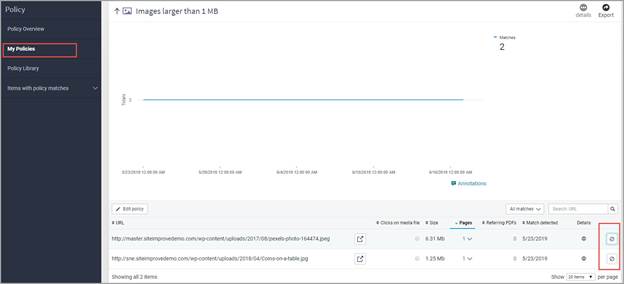
When ignoring Media and Document Policies, the ignore function will apply to ALL pages that contain the document/media file that is found by the Policy. To do this, follow these steps:
- Click Policy > My Policies in the sidebar menu.
- Click the relevant Media or Document Policy to view the assets that match.
- From the list of URLs, find the asset (e.g. PDF, image) for which you want to ignore the policy match.
- Click the ignore button (circle with a diagonal line through it) next to the match to ignore the item for this specific Policy. Ignoring the item will affect all pages where the item is found.
Note: A Content Policy cannot be ignored on all pages across your website like in the Quality Assurance module. You have to tweak your existing policy matches/criteria in order not to receive false results. You can alternatively delete the Policy if you do not wish to have it implemented on your site.
How to ignore a Content Policy on individual pages
It may be helpful to ignore the Policy matches on specific pages but make corrections on other pages. To ignore a Policy on a specific page, take the following steps:
- Click Policies > My Policies in the sidebar menu.
- Click the relevant Content Policy to view the pages that match it.
- From the list of URLs, find the page for which you want to ignore the policy match.
- Click on the ignore button (circle with a diagonal line through it) to ignore the Policy on that specific page.

Note: When ignoring a Policy on an individual page, all instances of the Policy will be ignored on that page.
How to reverse a Policy decision
- Click on Policy > My Policies in the sidebar menu.
- Select the Policy where you previously ignored a match.
- Filter by Ignored matches within the Policy category (i.e. Content, Media, Documents) where you want to reverse a policy decision.
- Click on the undo decision button (curved arrow symbol) to reverse the Policy decision.

Expected Result
- Ignoring a Media/Document match: The item is ignored for that specific Policy across all pages where it's found.
- Ignoring a Content match: All instances of the Policy are ignored on that specific page.
- Reversing a decision: The match is restored for evaluation. Reversed policy decisions will not be visible in the Policy list until the site has been re-crawled.
Additional Information
- Known limitations: Content Policies cannot be ignored site-wide in bulk (unlike in the Quality Assurance module) — matches/criteria must be adjusted, or the Policy deleted, to prevent false results going forward.
- Tips or best practices: Reversed decisions require a fresh site crawl before they reappear in the Policy list — plan accordingly if you need to confirm a reversal immediately.
Did you find it helpful? Yes No
Send feedback