How to re-check a site, a page, multiple pages or a group
Summary
While Siteimprove checks your site on a set schedule, you may wish to start another check outside of this schedule. There is no additional charge incurred for doing so. It is possible to initiate a check at the page, multiple-page, group, or entire-site level.
Prerequisites
- Access to the Quality Assurance module.
- For full-site re-crawls, Account Owners, Administrators, or users with a customized role that includes the appropriate permission.
Procedure 1: Re-check a Page
Page re-check
If you have just updated a particular page and would like to re-check the page for issues, you can do so using the "Page re-check" icon found at the top of each page report. Further information on navigating the Page report is available in Quality Assurance: Broken Links and Misspellings. 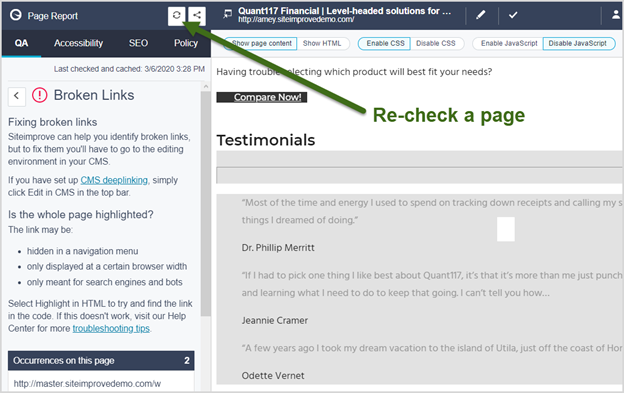
Results typically take a minute to return. The screen will refresh automatically once completed.
Info: A Page re-check does not re-run the policies applied to the site that the page is a part of, and does not update any applicable Policy matches. At this time, only a scheduled or manually initiated full site scan triggers a re-run of the policies applied to that site.
Procedure 2: Re-check Multiple Pages
Re-check of multiple pages
If you have updated multiple pages on your site and would like to re-check them for issues, you can do so by checking off the boxes next to the page title/URL and clicking the "Re-check" button on page list views within the Content Suite. Page tables can be found throughout the platform, for example, Quality Assurance > Links > Pages with Broken Links. 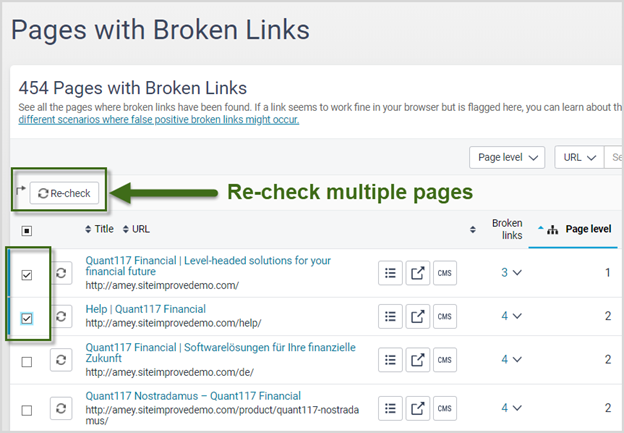
Procedure 3: Re-check a Group
If you have made updates to a particular group, you can re-check the group as follows:
- Go to Quality Assurance > QA Overview.
- Along the top of the page, select site and group you would like to re-check.
- Click the"Re-crawl group" button.

Procedure 4: Re-check an Entire Site
By default, only Account Owners and Administrators have permission to re-crawl the entire site. Customized roles can also be configured to have this permission. For information on customizing, see the interactive tutorial: How to customize user roles.
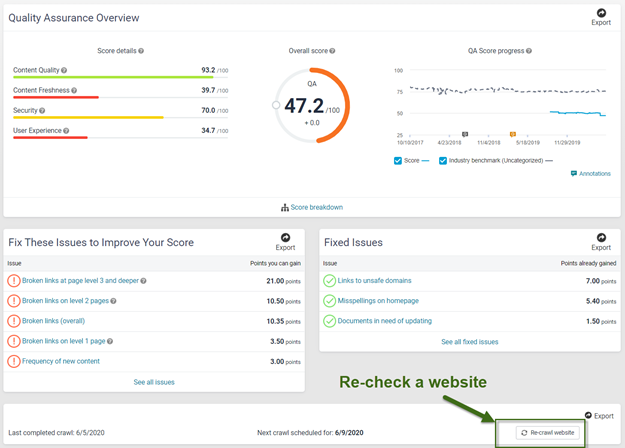
If you would like to re-check an entire site, follow these steps in the Quality Assurance module:
- Go to Quality Assurance > QA Overview.
- Along the top of the page, remove any group selection so that "No group selected" is displayed.
- Click the"Re-crawl website" button.
Expected Outcome
- Results from a Page re-check typically take a minute to return and the screen will refresh automatically once completed.
- A re-check is initiated for the selected page, pages, group, or site.
- Once a full site re-crawl completes, you should receive the same reports and notifications as with your scheduled crawl.
Additional Information
Page Re-check Limitations
A Page re-check does not re-run the policies applied to the site that the page is a part of, and does not update any applicable Policy matches. At this time, only a scheduled or manually initiated full site scan triggers a re-run of the policies applied to that site.
New Sites
If you just added a new site and are seeing a message that states "You got here before us" then the site hasn't completed an initial full crawl yet. You won't be able to order a crawl from the dashboard or single-page check until the initial full crawl is completed.
Did you find it helpful? Yes No
Send feedback