Analytics - Priority and Site Guards
Summary
Use Priority to determine which Analytics site data should be assigned to when multiple site log domains match. Use Guards to test that URLs are logging data to the intended site according to the Sitelogdomain and Priority set.
Priority:
Site Priority is used to prioritize which Analytics site data should be assigned to. This is especially useful when users are using prefixed subdomains.
Examples
For example:
Analytics SiteA: Sitelogdomain is 'example.com', Priority is set to 10.
Analytics SiteB: Sitelogdomain is 'subdomain.example.com' Priority is set to 20.
In this scenario: the data for subdomain.example.com will show under SiteB, and the remaining data will display under SiteA.
Analytics SiteA: Sitelogdomain is 'example.com', Priority is set to 20.
Analytics SiteB: Sitelogdomain is 'subdomain.example.com' Priority is set to 10.
In this scenario: all of the data would show under SiteA. With the Sitelogdomain set to include anything with 'example.com' in the URL, this would include anything under subdomain.example.com. SiteB would not show any data as a result of this setup.
To get the data assigned to https://subdomain.example.edu instead of https://www.example.edu, the solution is to change the priority for the subdomain from 10 to 20, as a higher number equals higher priority when data can go to 2 different sites. A higher priority number wins when multiple site log domains match the data available.

Guards
Using the Guards in the Site Log Configuration Feature, the Analytics team has enhanced the site log domain experience and added a feature that can help avoid data being assigned to the wrong site.
Steps
- To use this feature, go to Analytics > Analytics settings > Tracking >Site configuration and select the Guards tab.
- Guards are a means of ensuring that the Sitelogdomain configuration is correctly configured and that URLs are passed to the correct site.
- Choose Add guard, select Site and add the Guard URL and press Save changes.
- After saving the Guard rule, check that it was added as intended and press the Validate guard button to check that it passes and shows that data is actually going to the correct site.
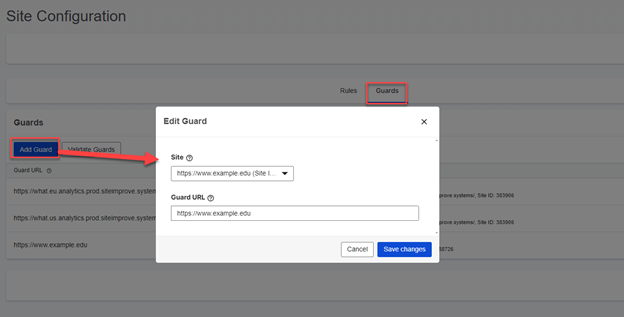
Note: It is important to note that Guards are used as a testing tool. It is to check that your URLs are logging data to the intended site according to the Sitelogdomain and Priority set. Guards will not set or determine where any data is logged to.
Troubleshooting
To resolve a failing Guard, go to the rules and look at the site where it can be seen that a domain match exists with a priority of x. The subdomain domain match has a priority of 10 (default value). This entails that logs for the subdomain will be assigned to the site as seen when trying to validate the configured guard.
- The solution is to change the priority for the subsite to a number that is higher than that of the domain the data is otherwise delivered to.
- To do so, press the 3 dots button and then select “Modify rule”.
- Change Priority to ex. 20 and press “save changes”.
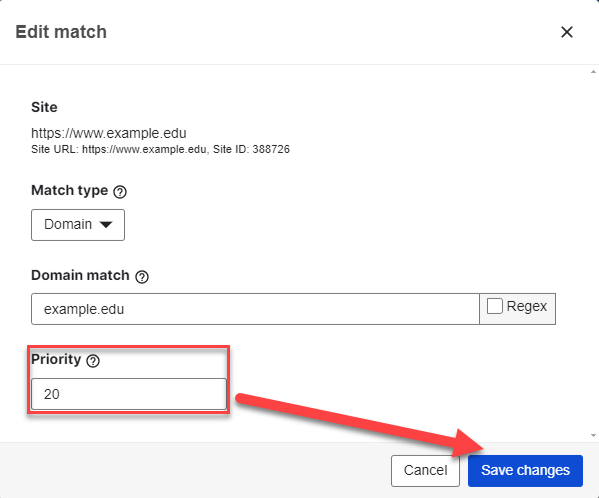
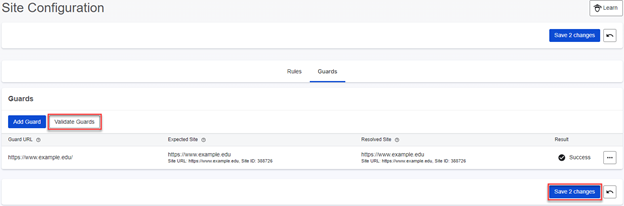
- To validate that the change works: go back to guards settings and press ‘Validate Guards’.
- If the configuration works, it should get the result: ‘Success'.
- Now press the button “Save 2 changes” to do an actual save of the configuration.
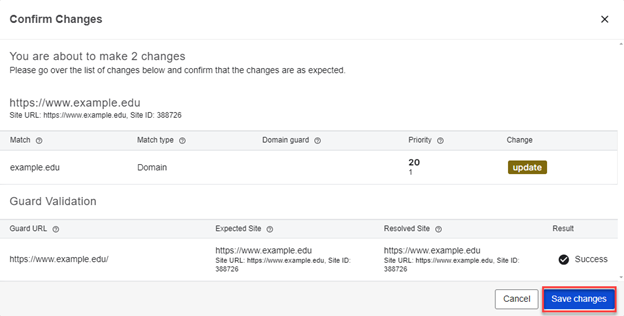
- Validation will run again and if the result is a success, press the save changes button to put changes into production.
Did you find it helpful? Yes No
Send feedback