Optimizely (Episerver) CMS Plugin Installation and Usage Guide
The Siteimprove Optimizely (Episerver) CMS plugin is a CMS Plugin used specifically with the Optimizely (Episerver) Content Management System (CMS) environment. The plugin works like a small version of the Siteimprove Intelligence Platform that, after installation and configuration, appears in an overlay within the Optimizely (Episerver) CMS environment and informs users about data and issues related to the page they're working on in the CMS.
The standard plugin shows data from the Siteimprove platform for the live published pages that are scanned in the Siteimprove Platform.
The Siteimprove Optimizely (Episerver) CMS plugin has the added advantage of Siteimprove’s Prepublish (Content) check functionality, which allows users in the Optimizely (Episerver) CMS to check for certain content issues before publishing. You can read more about Prepublish (Content) checks here: Prepublish content check: How to ensure quality content on your site.
Note: You’ll need a Siteimprove subscription to Prepublish to use the feature. Contact Siteimprove if you have any questions regarding your subscription. You can use the plugin without the Prepublish feature though, you just won’t be able to check content prior to being published in the CMS.
Prerequisites for Installation
There are several things you need to and can do ahead of installing the plugin to ensure that the plugin is installed and configured more easily.
Ensure that you have the proper resources to set up the plugin
You will need to ensure that someone has Account Owner level access to the Siteimprove platform. They will need to be the first to login to the plugin via the overlay once installed to approve the terms and conditions of the plugin.
It is recommended that you have resources on your end that have expertise or training with the Siteimprove Platform and, more importantly, expertise with the Optimizely CMS platform at the Admin level. Siteimprove doesn’t have the resources to walk you through the steps of installation and configuration of the plugin.
Ensure you are scanning the site you are installing the plugin on in the Siteimprove Platform
Make sure that the CMS site you are installing the plugin on is set up as a site being scanned in the Siteimprove platform, and it is not a local environment (i.e. an installation specific to your computer that doesn't have a published equivalent). Even if you plan to use the plugin mainly for Prepublish checks or you are just testing the plugin, you still need to install the standard plugin that checks against published content that is scanned in the Siteimprove platform. If the site is not being scanned, you can add the site to be scanned by following these steps: Adding a Site (Tips & Tricks). You will need to scan the published (live) pages and not the authoring (editing) pages.
If you want to test the plugin on a test environment first, please reference this article for steps to do so: How to test the Siteimprove CMS Plugins. For testing the plugin, it is best practice to scan published pages for a non-production site (for example, a QA, UAT, DEV, or Stage site). Do not test on a local environment for which the live published version of the pages cannot be crawled, as it will not be a good test of the plugin functionality. There are options to scan non-public sites, like allowing the IPs and User Agents used by Siteimprove or setting up a login site outlined here: Can Siteimprove crawl an intranet and other non-public sites?.
Ensure that the plugin is not blocked (optional)
This is marked as optional, as you may want to install the plugin first and then, if you run into issues, ensure that the plugin is not blocked by the things mentioned below. If you want to head things off and ensure no issues arise ahead of installation, though it may be good to take this into consideration ahead of time.
If you have network firewalls, Content Security Policies (CSP), Cross-origin resource sharing (CORS) policies, or other programs used with the site/browser that could block network requests made by the plugin, it is a good idea to ensure that the domains used by the plugin are not blocked.
Incognito browser windows, browser extensions that block ads or pop-ups, and cookie-blocking browser extensions or settings are all things that can block the plugin from working as expected as well. The plugin requires cookies for the login, and it could be seen as an ad-like pop-up, so it is best to ensure these things are not used with the plugin, or you may encounter issues with the plugin.
Domains to allow for the CMS Plugin
Overall (if wildcards are allowed):
- *.siteimprove.com
- *.siteimproveanalytics.com
- *.siteimprove.net
- *.siteimproveanalytics.io
More Specific*:
- api.siteimprove.com
- id.siteimprove.com
- identity.siteimprove.com
- sso2.siteimprove.com
- my2.siteimprove.com
- help.siteimprove.com
- cdn.siteimprove.net
- api.eu.siteimprove.com (EU Datacenter)
- id.eu.siteimprove.com (EU Datacenter)
- ap.eu.siteimprove.com (EU Datacenter)
- contentassistant.eu.siteimprove.com (EU Datacenter)
- api.us.siteimprove.com (US Datacenter)
- id.us.siteimprove.com (US Datacenter)
- my2.us.siteimprove.com (US Datacenter)
- contentassistant.us.siteimprove.com (US Datacenter)
- ap.us.siteimprove.com (US Datacenter)
*If using specific URLs, you should include the URLs that don't note which data center, and also the ones listed for the corresponding data center you are on.
If using the Prepublish feature, create an API key (optional, only needed if using the Prepublish feature)
Follow the steps here: How to connect to the Siteimprove API, to set up an API key. This API key will be used in the installation process to set up the Prepublish feature. The user you set up the API key with will need access to the site you are installing the plugin on, and also should ideally have Admin or Account Owner level access in the Siteimprove platform.
Note: It is best practice to set up a user account that is generic and not user-specific, like one called “Siteimprove User” for example, so that specific user changes don’t impact the plugin connection. See How do I add a user? for how to set up the Siteimprove user portion of this. A user like this can be helpful to have set up to be used with other integrations as well, for the same reason. It is up to your organization to create and manage this user within your CMS or organization.
Installation
Download the plugin files
Download the plugins from the links below that correspond to your version of Optimizely or Episerver. Then follow the steps to install and configure the plugin on the corresponding version of your Optimizely (Episerver) CMS authoring (editing) environment.
- Episerver version 11 (Supports Episerver versions 10 and 11) - https://nuget.optimizely.com/packages/SiteImprove.EPiServer11.Plugin/
- Optimizely CMS version 12 (Supports Optimizely 12) - https://nuget.optimizely.com/packages/SiteImprove.Optimizely.Plugin/
Install Plugin
Installation steps should be located under the "Read Me" area of the GitHub project URLs listed below by version. Follow these steps to install the plugin. You will need to configure the plugin as the next step.
- Episerver version 11 - https://github.com/Siteimprove/CMS-plugin-Episerver
- Optimizely CMS version 12 - https://github.com/Siteimprove/CMS-plugin-Optimizely
Configuration
Set up User access to plugin in Optimizely (Episerver)
The new version of the Siteimprove plugin comes with a new Epi/Optimizely role, Siteimprove Admins, that is installed automatically as part of the plugin package.
Siteimprove Admins is a custom group, where you can assign any group in your solution.
We allow the following groups access:
Administrators, Web Admins, CMS Admins, Siteimprove Admins.
Configure the plugin
After installation, there should be a menu item under the "Admin" menu called "Siteimprove" where you can set up the configurations required for the plugin. The fields and selections that need to be configured are listed below with instructions on how to configure them. Remember once you have updated configurations to select the "Save" button to save the configurations. The version number of the plugin should appear at the bottom by the "Save" button for easy reference.
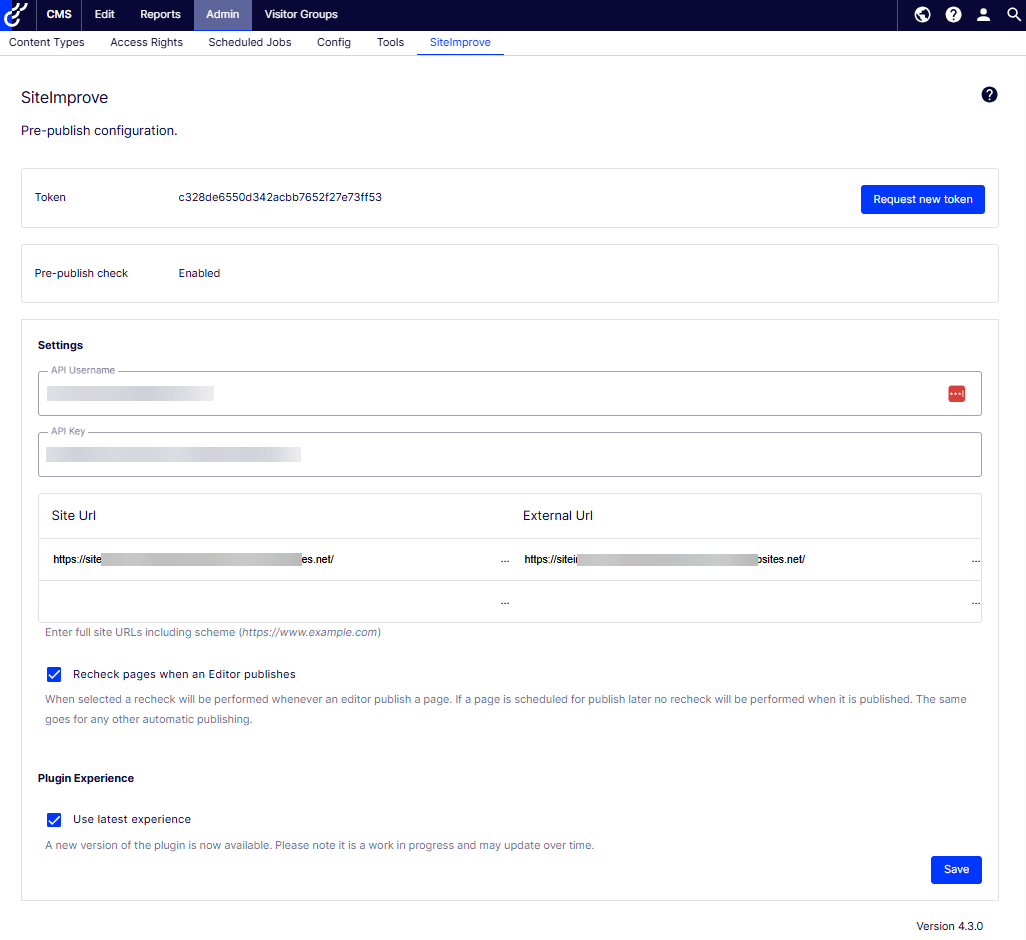
Token
The token should automatically be filled in, but if it doesn't appear, you can request a new token.
API Username and API key (optional)
This only needs to be filled in if you are using the Prepublish (Content) check feature and have a subscription to the feature. If you don't have this feature, leave this blank. How to set up the API credentials was covered above under the Prequisites for Installation steps, but if you missed that, you can reference this guide: How to connect to the Siteimprove API for how to set up API credentials to be entered in this field.
Site URL
Corresponds to the authoring (editing) URL domain for your CMS authoring/editing environment. Please ensure that what you enter is a valid URL that includes the scheme at the beginning (http/https and www or not), or the entry here will not be saved when you select the "Save" button.
External URL
Corresponds to your live published domain for the site that we are crawling in the Siteimprove Platform. Please ensure that what you enter is a valid URL that includes the scheme at the beginning (http/https and www or not), or the entry here will not be saved when you select the "Save" button.
Recheck pages when an Editor publishes
Checking this box will cause a recheck of the page in the Siteimprove platform when the page is published. If the page is scheduled to publish later, no recheck will be performed when it is published. The same goes for automatic publishing. This really just performs a "Single Page Check" in the Siteimprove platform. You will want to be careful though with this if you plan to publish whole large sections of pages at a time or the entire site as we have run into issues with too many single page checks then getting pushed though, which then become basically like a full site crawl, which can slow the system down and slow down the scheduled crawls of your sites under your account. Also, these checks don't necessarily automatically clear out, so you will need to manually review them periodically and remove them if no longer needed.
Use latest experience
If checked, the plugin will use the latest UI/UX or "New Plugin Experience" for the plugin. The "New Plugin Experience" was released relatively recently, so there is the option to revert to using the "Old Plugin Experience" or old UI/UX. There is documentation about the "New Plugin Experience" here: How to navigate the New Siteimprove CMS Plugin. I have listed the most notable differences in the versions below. We are working on improvements to the new version on the roadmap, so this may change.
New things with the New Plugin Experience:
- All new UI/UX for the plugin overlay
- Siteimprove User Roles are connected
- Sticky selection for filter options under “List View”
- Uses SDK and different request URLs - the request URLs are from https://contentassistant.siteimprove.com versus https://my2.siteimprove.com. More information on the SDK can be found here: https://developer.siteimprove.com/siteimprove-cms-plugin-markdown.html.
Deprecated Features with New Plugin Experience:
- Site Overview and Content Check History
- Analytics data – possibly coming later
- Some SEO data – most of the data is now available, except for Activity Plan and Keyword data. You will need to request that we add SEO if you have an SEO subscription for your account, as this is in beta mode. You can submit a support ticket to request this be added.
- URL Shortener data
Usage
Approve the terms and conditions of the plugin
- Make sure that the CMS site is set up as a site being crawled in the Siteimprove platform. If it is not, see "Adding a Site - Tips & Tricks". If you want to test the plugin on a test environment first please reference this article for steps to do so: How to test the Siteimprove CMS Plugin
- Download the plugin and installation guide (if applicable) which can be found via the Siteimprove CMS plugin page.
- Install the plugin as described in the CMS specific plugin installation guide which can be found via the Siteimprove CMS plugin page. In most cases, this will require someone with admin rights in the CMS and someone with technical knowledge of the CMS.
- The Siteimprove Account Owner should be the first one to log into the plugin in the CMS with their Siteimprove platform credentials and agree to the terms and conditions*.

- Now you can login and navigate the CMS Plugin. See "How to navigate the Siteimprove CMS Plugin"
How to use the plugin
You should then be able to utilize the plugin if everything is installed and configured correctly per the instructions above. You can reference our documentation on how to use the plugin to determine if the plugin is behaving as expected. If you are running into issues and certain features are not working you please reference the Troubleshooting section below for some things you can look into to resolve some more commonly reported issues with the plugin.
Documentation on how to use the plugin
How to navigate the New Siteimprove CMS Plugin - goes over how to use the plugin if you have the default “New Plugin Experience (UI)” installed with the plugin.
How to navigate the old CMS Plugin - goes over how to navigate the plugin if you are using the “Old Plugin Experience (UI).”
Prepublish (Content) check with New Plugin Experience
See How to Run a Prepublish Check with the New Plugin UI or follow the steps below to run a Prepublish (Content) Check in the Optimizely CMS plugin if you have checked "Use latest experience" under the plugin configurations.
- Select the page you want to check, and make sure to select the "Preview" button to preview the content of the page. You need to be in "Preview" mode for the checks and highlighting to work properly. Note: To run a Prepublish check, the page needs to be saved as a draft. It doesn't have to be published, but you can do a Prepublish check of a published page as well.
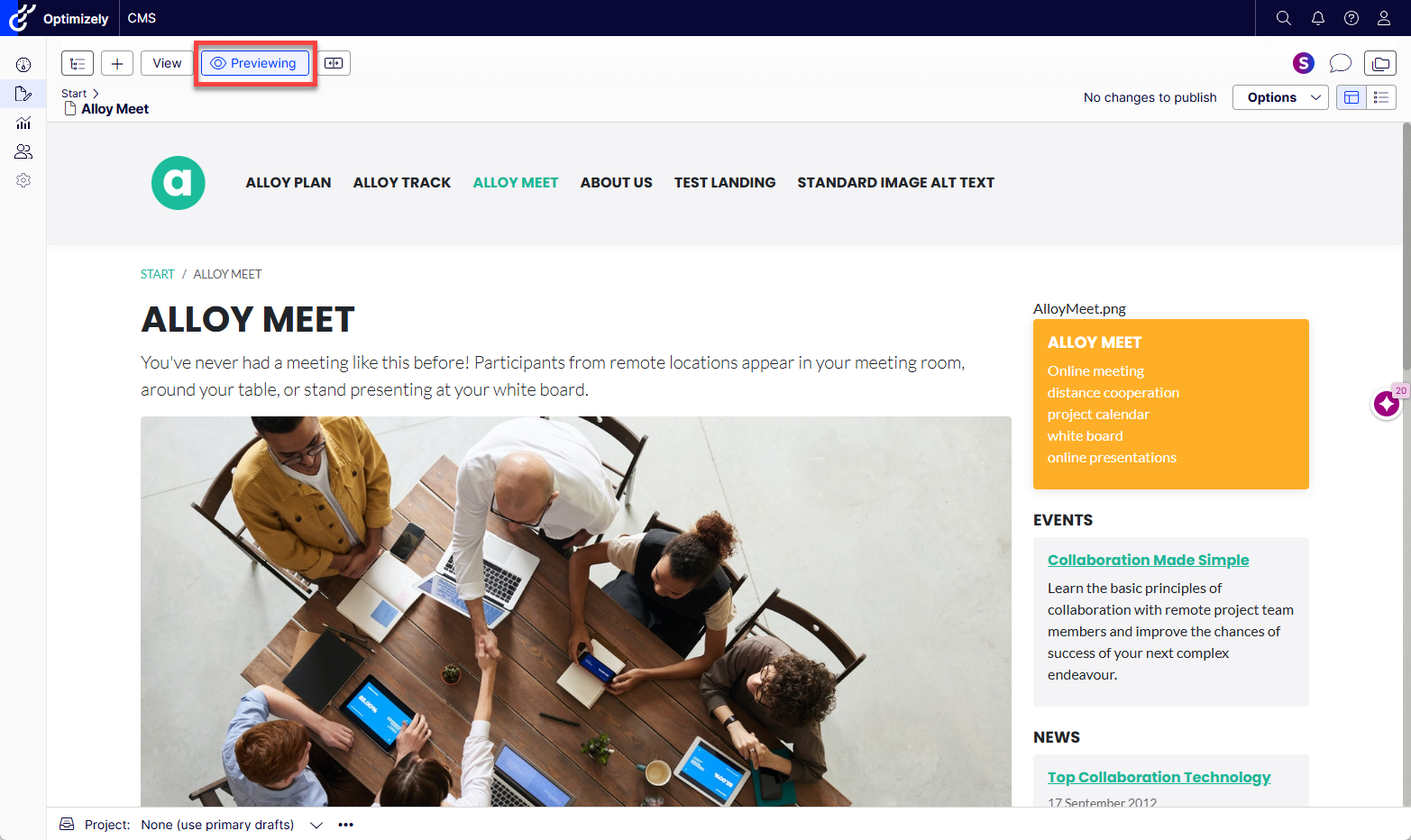
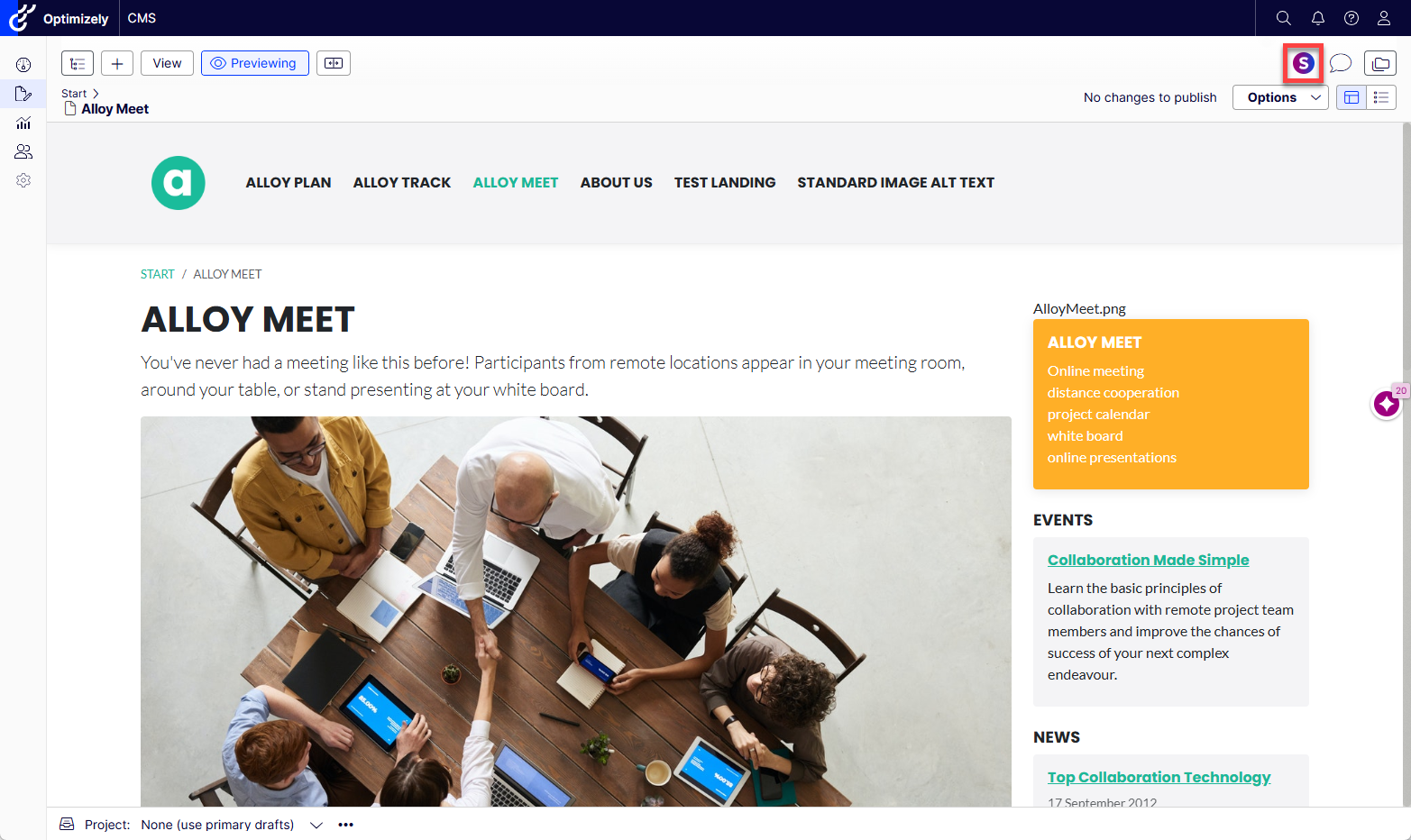
- Select the Prepublish (Content) Check button (Siteimprove icon) in the page editor toolbar in the upper right-hand corner of the page to start a Prepublish check. If the plugin overlay is expanded out, you may want to select the "x" button in the corner of the plugin overlay to collapse it down first, so you can see the Siteimprove icon in the toolbar.Note: It is expected behavior for the "Live page" view to display "No Results Yet" if the page hasn't been published yet, as the "Live Page" tab shows results for content that has been published and scanned in the Siteimprove Platform.
- The plugin overlay should open up and start a Prepublish (Content) check. The checks may take some time to process, and a loading bar should appear to show the progress. You have the option to select the "Cancel content check" button to cancel the current check.
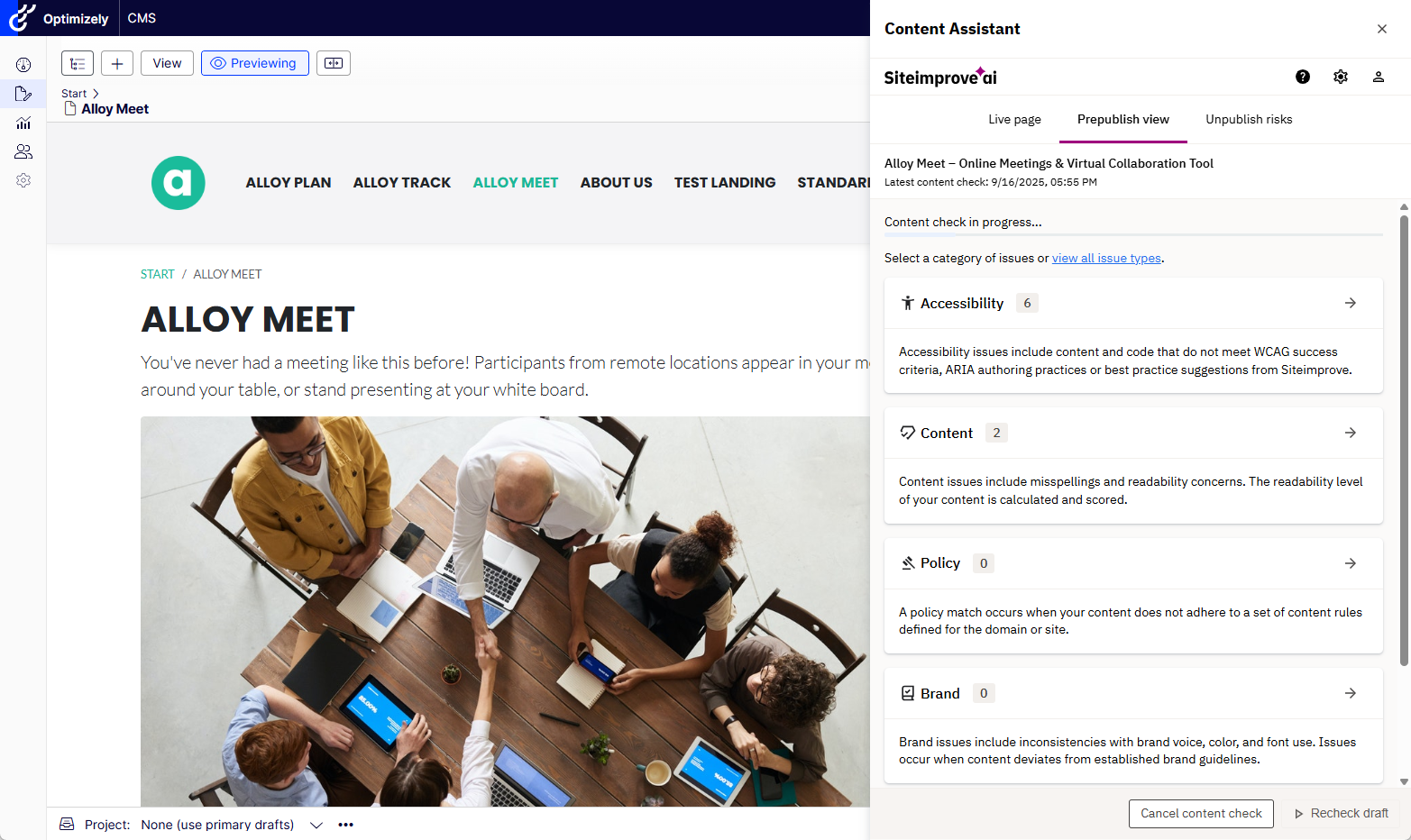
- Once the checks have completed processing, you can see the results of the checks. See Overall Prepublish Check Usage for more on general Prepublish check usage.
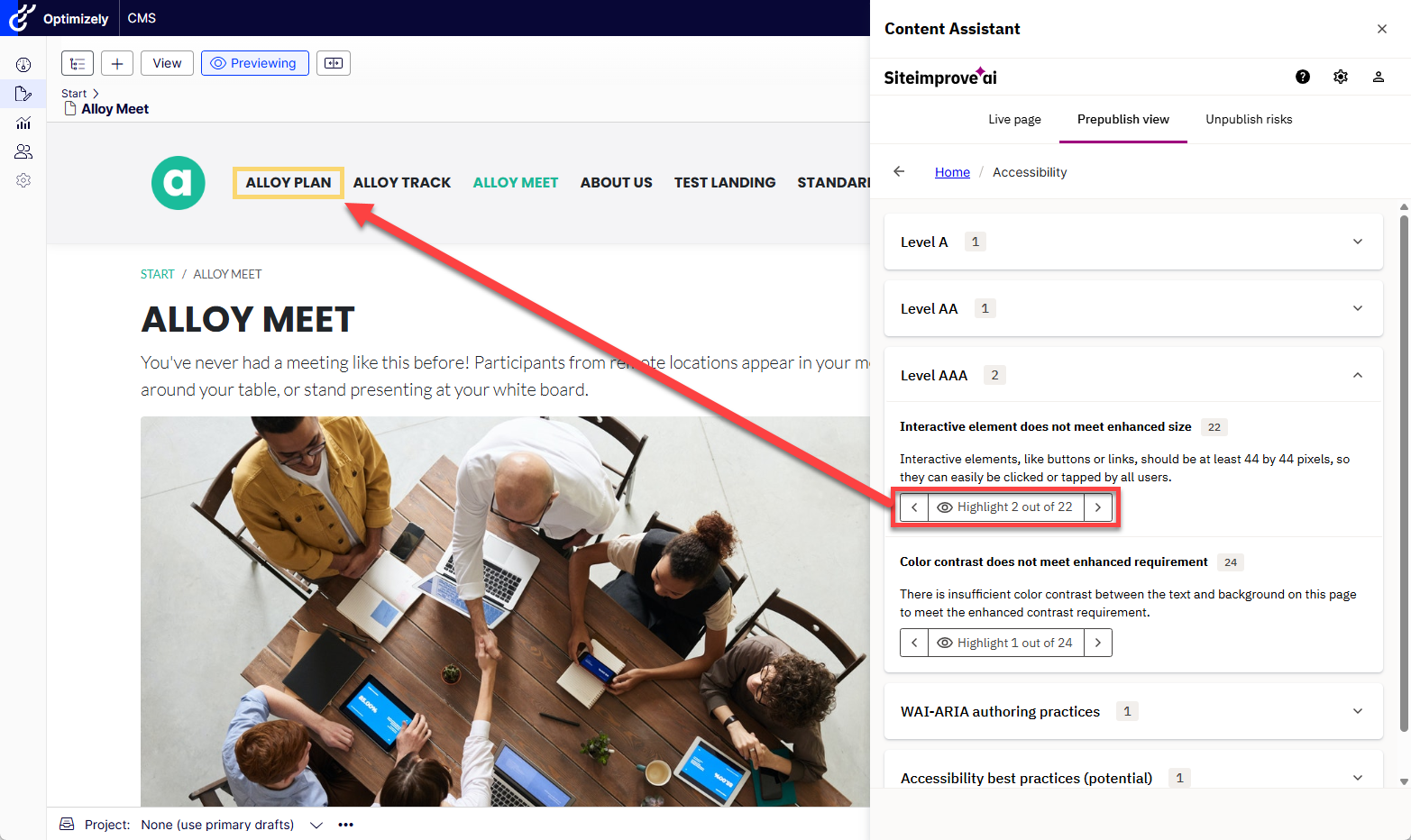
- Within the Prepublish check results, you can view the issues found on the page prior to the page being published. Some issues will have the option to highlight them on the page by selecting the "Highlight" button with an eyeball icon. If there is more than one occurrence of the issue you can use the arrow button to select occurrences and highlight them in the Preview area. For more details on Prepublish, the checks available, and how to use the Prepublish check area, please review Prepublish content check: How to ensure quality content on your site.
- To run another Prepublish check, select the Prepublish (Content)Check button again to start the process over. You may need to refresh the page before doing so though if another Prepublish check doesn't kick off.
Prepublish (Content) check with Old Plugin Experience
Follow the steps below to run a Prepublish (Content) Check in the Optimizely CMS plugin if you have not checked "Use latest experience" under the plugin configurations.
- Select the page you want to check, and make sure to select the "Preview" button to preview the content of the page. You need to be in "Preview" mode for the checks and highlighting to work properly. Note: To run a Prepublish check, the page needs to be saved as a draft. It doesn't have to be published, but you can do a Prepublish check of a published page as well.
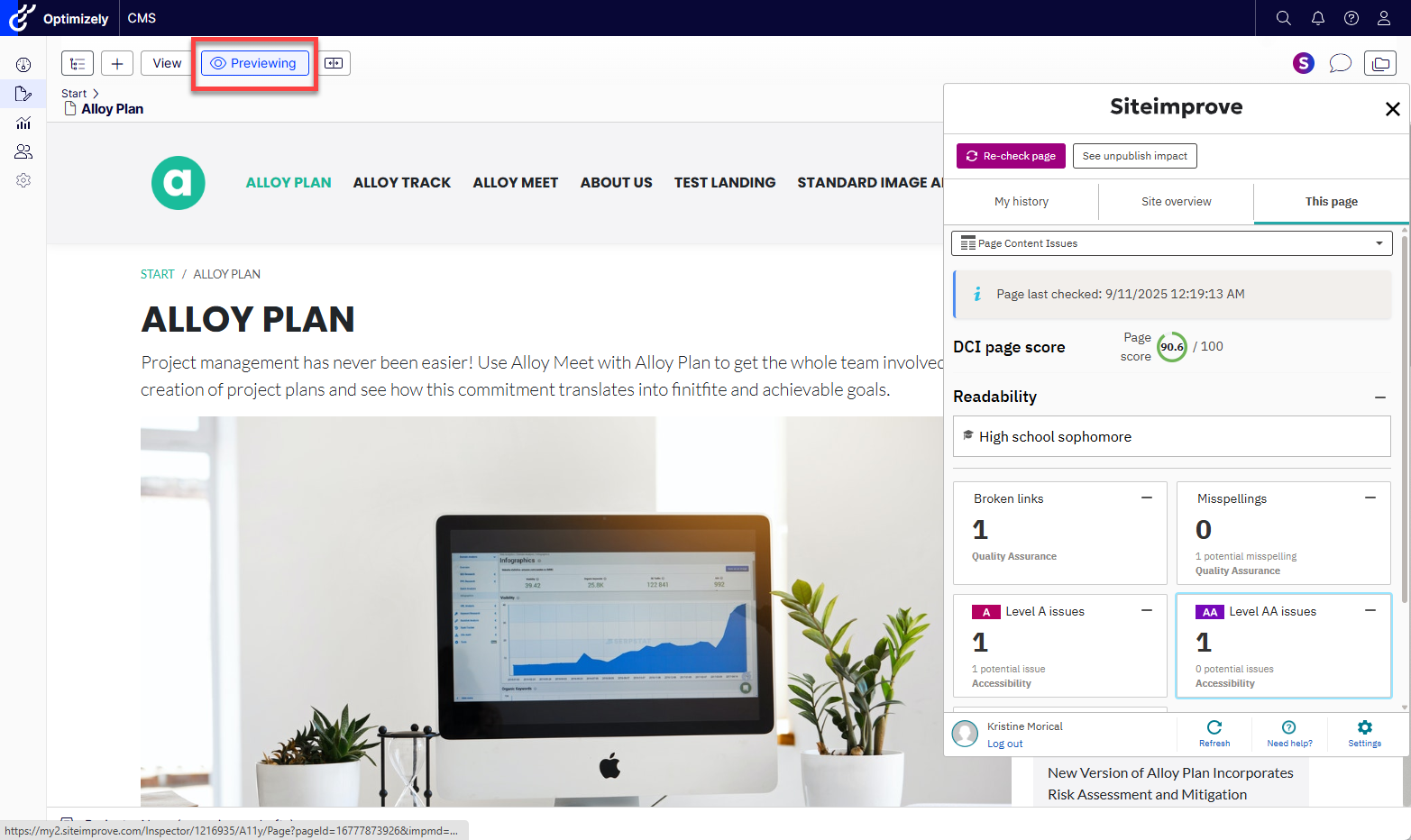
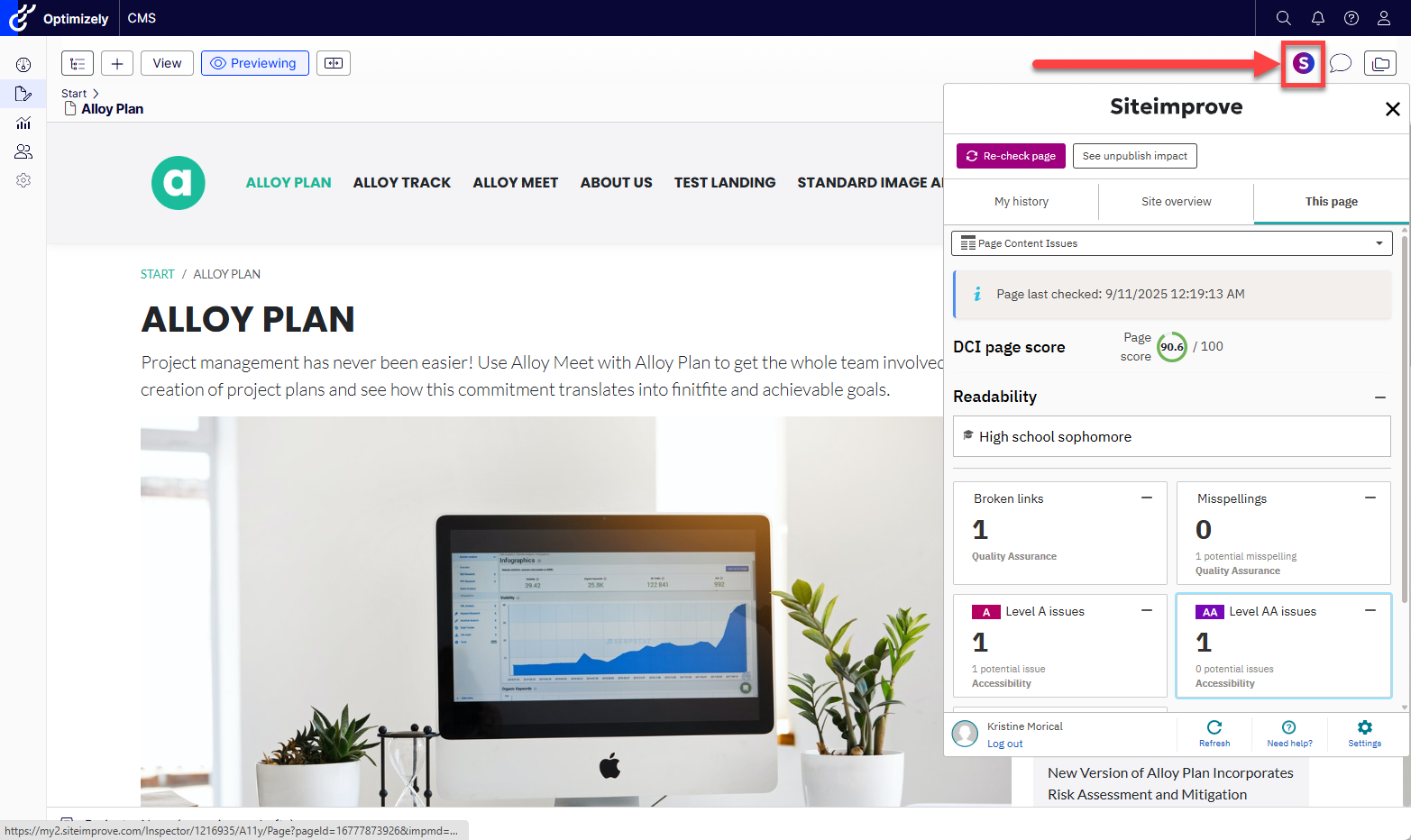
- Click the Siteimprove icon in the page editor toolbar (the SI icon in the upper right-hand corner of the page) to start a Prepublish check. Note: It is expected behavior for the "This page" view to display "Missing access to page" if the page hasn't been published yet, as the "This page" tab shows results for content that has been published and scanned in the Siteimprove Platform.
- The checks may take some time to process, and a loading bar should appear to show the progress towards the top of the plugin.
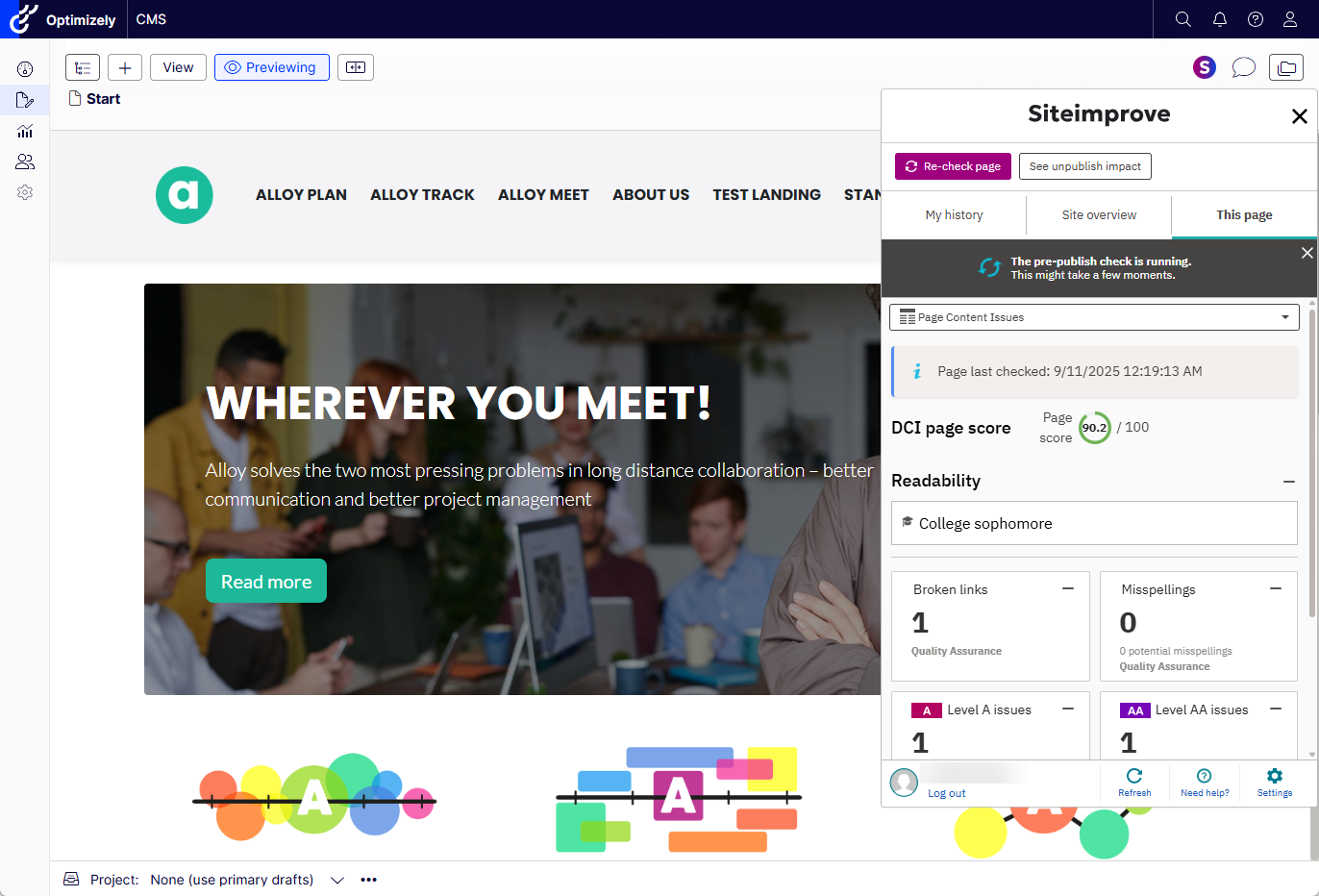
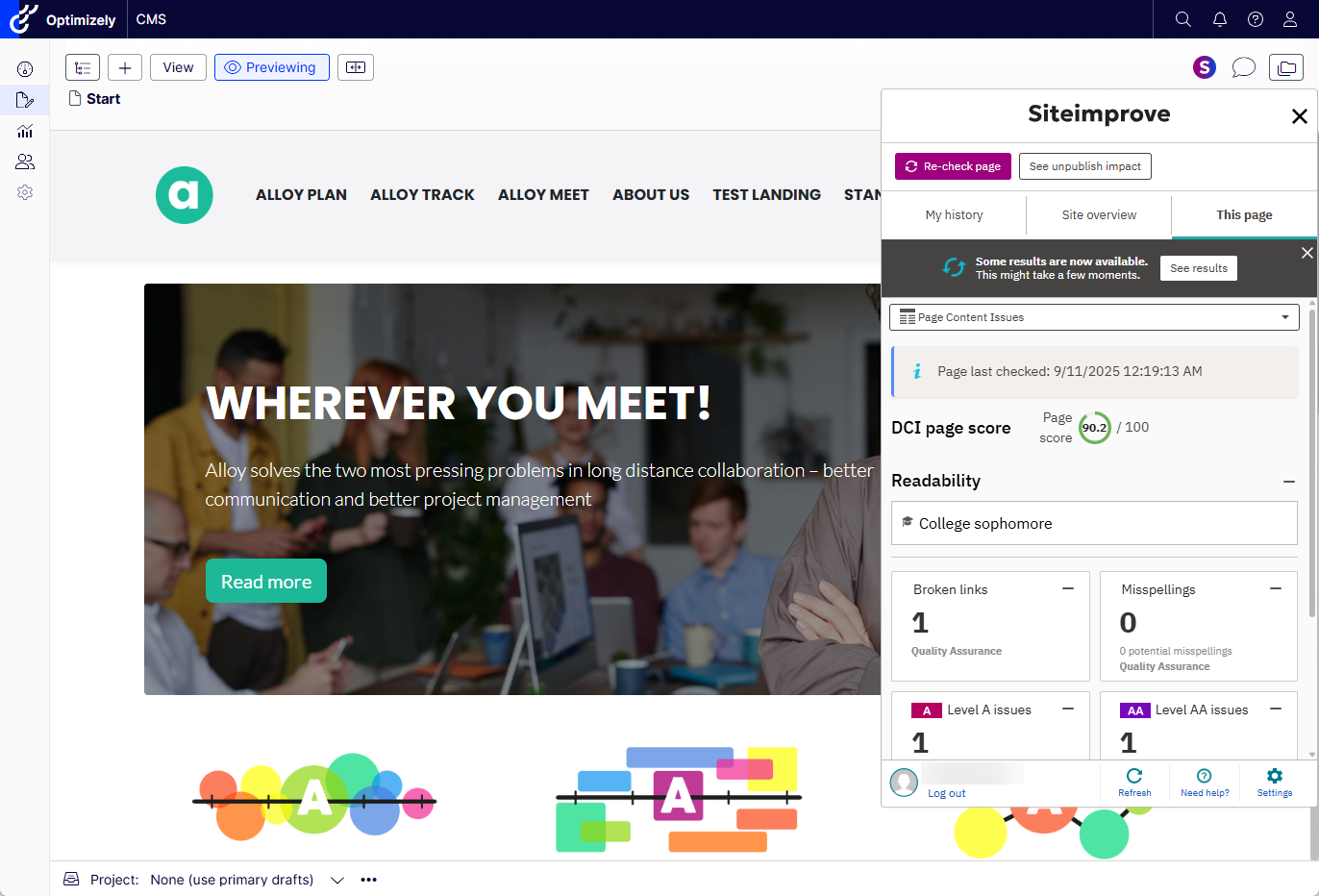
- Mid-processing, it will say "Some results are now available," and a button will appear that says, "See results," which you can select to see the results of the Prepublish check so far before it has completed processing. If you select this option, processing of the check will happen in the background, and the results of the plugin will be updated in the Prepublish check view once the Prepublish check is completed.
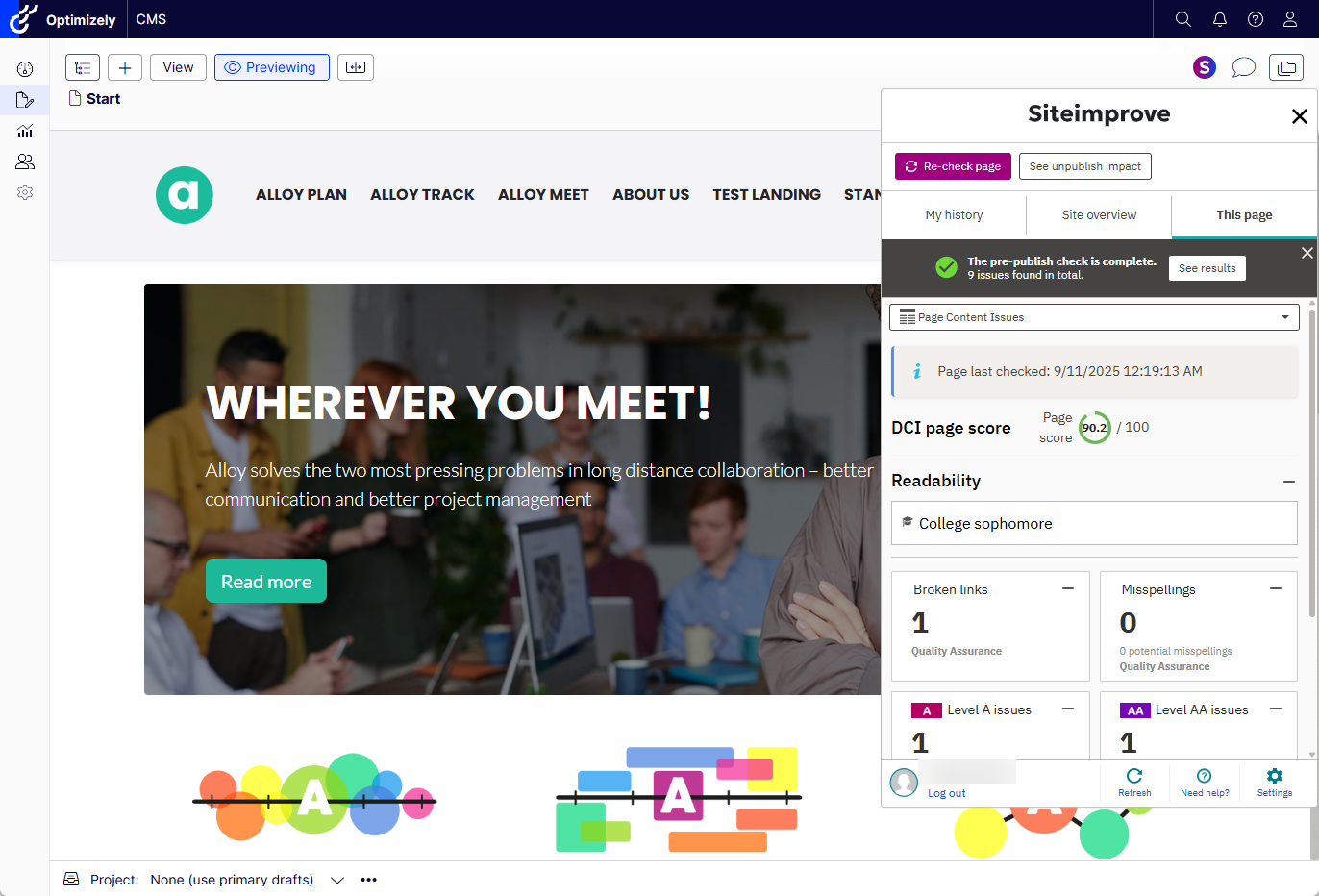
- If you don't select the "See results" button, the check will complete processing, and then you will see a message saying "The pre-publish check is complete" with the option to select the "See results" button, which when selected will open up the Prepublish check results.
- Within the Prepublish check results, you can view the issues found on the page prior to the page being published. Some issues will have the option to highlight them on the page by selecting the button with an eyeball icon. See more about what checks are available in Prepublish and other Prepublish FAQs here: Prepublish content check: How to ensure quality content on your site.
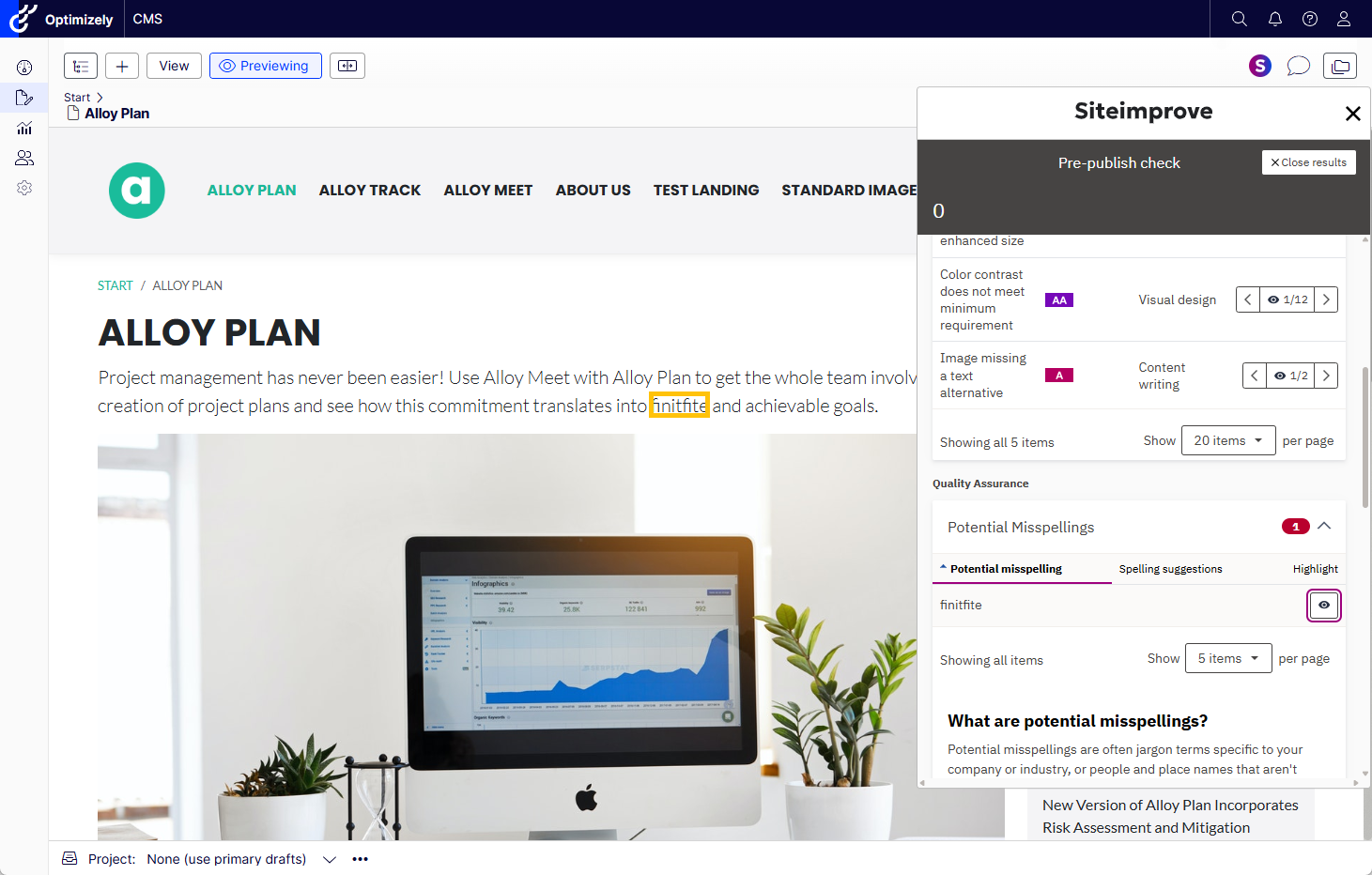
- You can close the Prepublish check results by selecting the "Close results" button in the upper right-hand corner of the overlay.
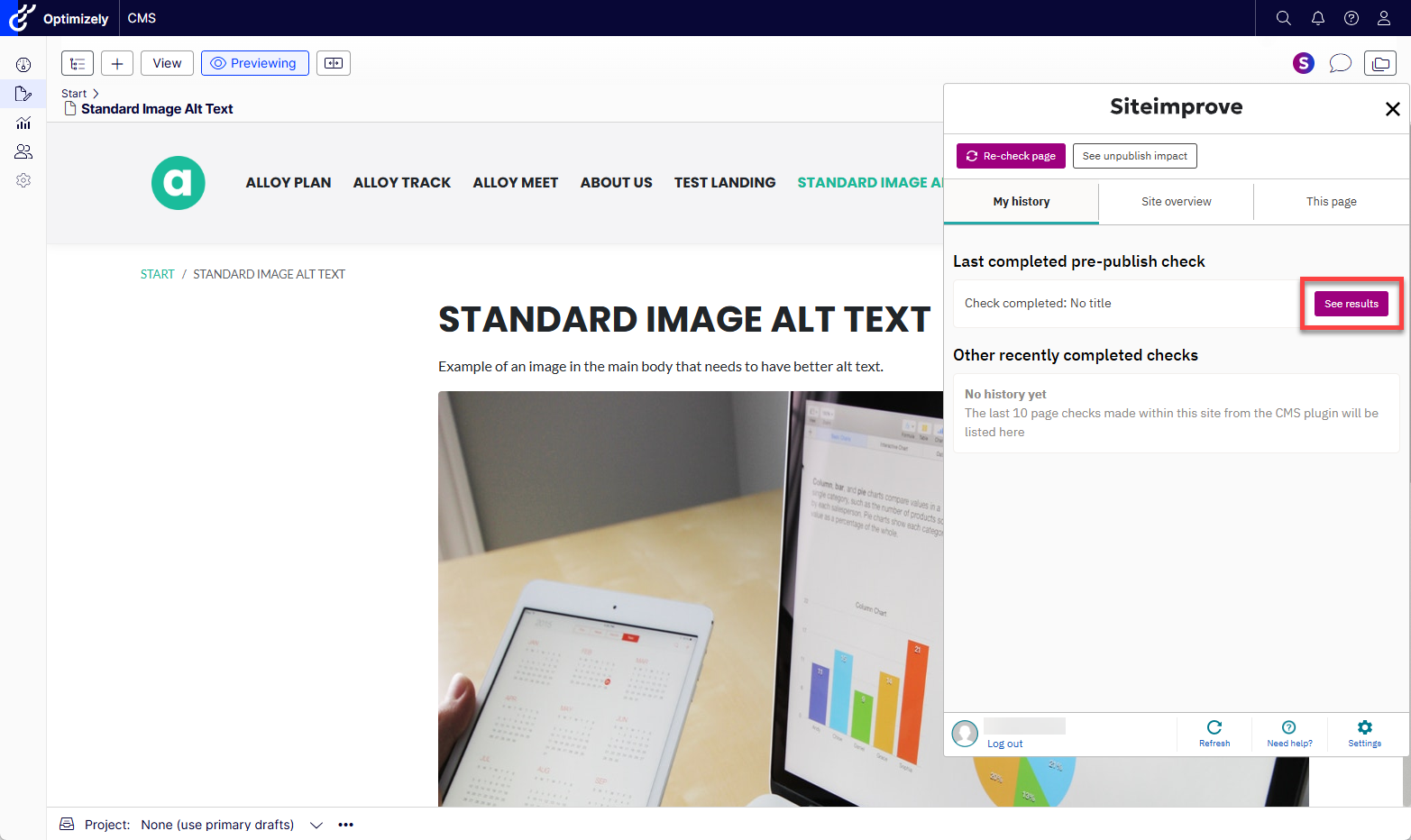
- To view the latest Prepublish check of the page you are on again, you can go under the "My History" tab and select "See results." Keep in mind that the results of the Prepublish check will only display for you for your user session. Once you navigate to another page or refresh the page, the prepublish check results from the last check will no longer display.
- To run another Prepublish check, select the Prepublish check button again to start the process over. You may need to refresh the page before doing so though if another Prepublish check doesn't kick off.
Troubleshooting
Installation Issues
If you run into issues with installing the plugin, please Create a support ticket with the Siteimprove support team with as many details on any errors returned and screenshots of the issue that you can provide. It is also helpful to provide information on what version of Optimizley you are running, what version of the plugin you are trying to install and the site URL for the published site we are crawling in the Siteimprove platform you are trying to install the plugin on. For more information on how to submit a support ticket please review How do I contact Siteimprove?
Prepublish check error messages
You need a subscription to Prepublish in order to use the Prepublish (Content) Check feature.
Seeing “Page not found, No Results yet, or Missing access to page” messages under "Live Page or “This page” tab
This is expected behavior if the page is not published
If the page is not published yet or crawled in the Siteimprove platform there will be no data yet to display here as this area displays data from pages that are published and crawled in the Siteimprove platform. If you have the Prepublish (Content) check feature, you can run a Prepublish check. If you don't, you will need to publish the page and crawl it in the Siteimprove platform in order to see data under the "Live Page" or "This page" tab. If you publish a page and don't want to wait for a full site crawl, you can perform a Single Page Check following the steps in this guide How do I add new pages to Siteimprove that have not been checked? (Single Page Check).
If you have just installed the plugin and you are seeing this happen on all pages
First, ensure that you are crawling the site in the Siteimprove platform even if it is not a production site and just a site you are testing on. We recommend that when testing the plugin you use don’t use a local version of the site, but use a non-local development environment to test the plugin on like a Dev, Stage, QA, or UAT environment. The plugin requires a non-local site for some of the functionalities to work correctly.
Second, make sure you have entered the domain of the site with scheme (http/https and www or not) for the site crawled in the Siteimprove platform under the "External URL" area of the plugin configurations and that you have done the same for the "Site URL" area which should be the domain with scheme for the authoring URL in the CMS.
If it is not either of those two issues see the next area.
If you see this happening on all or some pages when the site is crawled in the Siteimprove platform
If the site is being crawled, typically this means that something needs to be adjusted within the plugin configurations or that we are not finding the page with the site crawl.
Steps to check into whether the page is being crawled in the Siteimprove platform are listed below.
- Login to the Siteimprove Platform and navigate to Quality Assurance > Inventory > Pages under the site you have installed the plugin on.
- Search for the published page URL for the editing page in the author environment you are seeing this error coming up under the plugin. Tip: you may want to try searching different versions of the live page URLS without the domain, protocols, extension (if applicable) or trailing slash (if applicable) to see if perhaps we are crawling a different version of the URLs than you are searching for.
Based on what you find you can tell some things.
If you find that we are crawling a different URL than expected that may mean that you have to adjust the configurations in the plugin to account for that or crawler settings may need to be adjusted to crawl the matching URLs.
For example, if you find that we are crawling a version of the URLs that includes www in the URLs ensure that you are also including www in the “External Url” area of the plugin configuration.
You can check to see what the CMS plugin request URLs are to help with making the correct adjustments to the crawl configurations as the URLs requested should match with what we are crawling. See CMS Plugins: How-to locate CMS ‘plugin request URLs' for more details on how to locate the request URLs. For example, if you see that the plugin request URL says “?URL=https://siteimprove.com/content/en/us/about-us” when the published page URL is actually “https://siteimprove.com/about-us” you will want to make sure to set the “Cut from path” setting in the plugin configurations to cut out “/content/en/us” from the URLs.
Most circumstances like this can be resolved with plugin configuration adjusts, but there are some circumstances that crawler adjustments may be needed or done instead. If for example, the pages render with both a trailing slash and without (without redirects) and we are crawling the version with the trailing slash and the plugin is requesting the version of the URLs without it we could adjust the crawl settings to remove all trailing slashes from the URLs. Unfortunately we cannot do the reverse and add trailing slashes though.
If the page is not being crawled it could mean that the page is not published yet, that the page has been published but not yet crawled, or it could mean that we are not finding the page as it is not easily to navigate to via links on the site. There are solutions for these issues listed below.
- The page is not easily found via links on the site.
- If there are a lot of pages like this I would recommend creating a sitemap with the URLs in them and then adding that to the crawl. If the URLs are already a part of the Sitemap you can also add that to the crawl. You may need to contact Siteimprove Customer Support to add the sitemap to the crawl.
- You can add the URLs as internal URLs under Site Content Settings. If you have a lot of URLs we don’t recommend this though as adding too many URLs this way can slow down the crawls of the site. It is best to create a sitemap or page with links to the pages you need scanned to add to the crawl.
HAR files and Plugin Request URLs
The standard "Live page" or "This page" checks in the CMS plugin to display data for live published pages that have been checked in the Siteimprove Platform makes network requests that can be seen under the browser’s development tools under the Network tab. In order for the plugin to return data for pages we are checking in the plugin, the URL in the Request URLs for live page data needs to match exactly with the URLs we are crawling in the Siteimprove Platform.
HAR files, which capture the network requests, can help the support and development team with troubleshooting why the plugin may not be working or configured properly, so the support team may request that you send them that information for some examples of editing pages you are having issues with. You can follow the article below for how to create HAR files.
You could also locate the specific request URLs under the network requests for the pages that you are having issues with and send them to support or take a look into the request URLs to see for yourself what the issue might be. Please review the article below for more on this.
Did you find it helpful? Yes No
Send feedback