How To use the Siteimprove Accessibility Checker
Summary
Learn how to use the Siteimprove Accessibility Checker to scan a web page, review issues, explore accessibility impacts, and re-check your fixes.
Applies to
- Siteimprove Accessibility Checker (browser extension)
Procedure
Step 1: Open the webpage
Visit the web page you'd like to check.
Step 2: Launch the extension
Click on the Siteimprove Accessibility Checker icon in your browser window.
Step 3: Review results and explore issues
You are presented with two tabs in the Accessibility browser extension:
• Issues: The Issues tab lists the accessibility issues found on the page. You can also filter by type of issue. When you select an issue you can then expand the occurrences of that issue with more information including code examples showing how to resolve it. The issue locations are highlighted on the page when possible.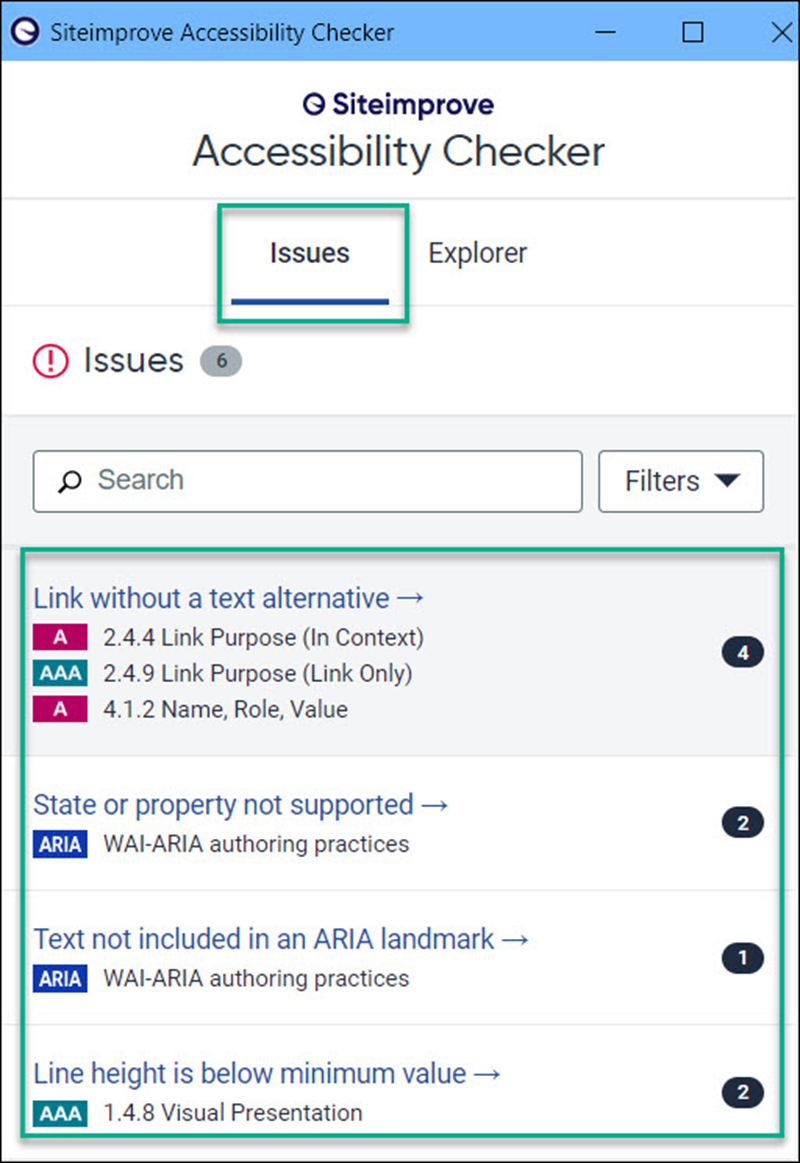
• Explorer: The Explorer tab allows users to explore a range of vision impairments on any webpage using filters. This gives a better understanding of the consequences of having an inaccessible site.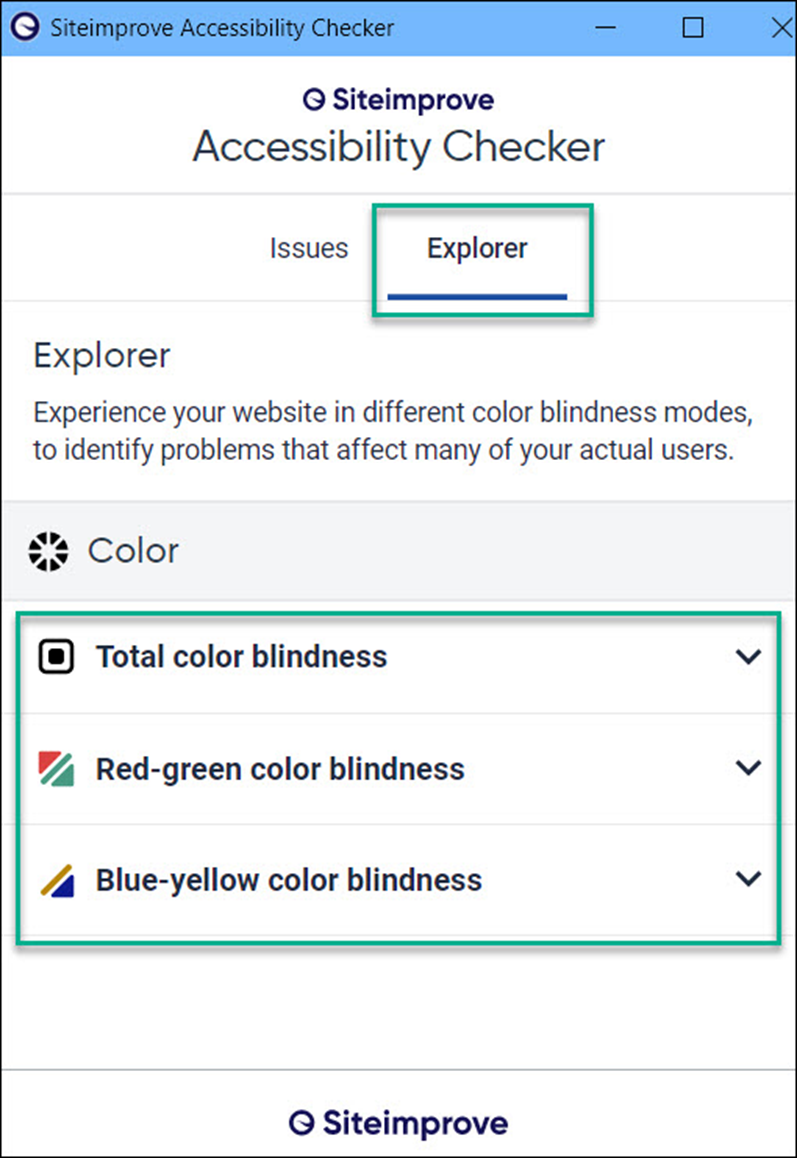
Step 4: Re-check the page
When you have fixed issues, you can re-check the page by closing the extension and re-opening it.
Result
You can identify, understand, and validate accessibility issues directly on a webpage using the Siteimprove Accessibility Checker.
Did you find it helpful? Yes No
Send feedback