How to Add User Journeys in Siteimprove Analytics
Summary
To add a User Journey, go to Analytics → Behavior → User Journeys, click Add User Journey, then define a start page and end page.
Overview
This article is intended to show you how to add a User Journey to start collecting data and create better experiences for your visitors.
Prerequisites
- Access to Siteimprove Analytics
- Appropriate permissions to configure User Journeys
Steps
- Select Analytics.
- Select Behavior.
- From the sub-menu, select User Journeys.
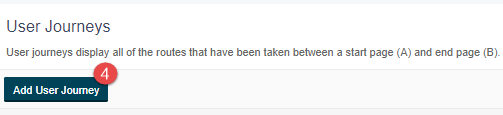
- Click Add User Journey.
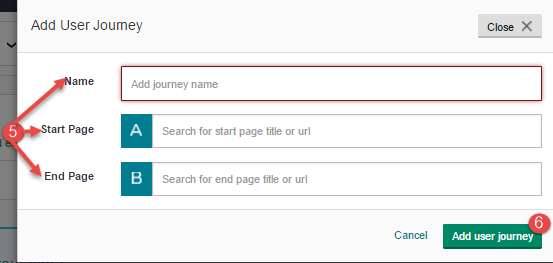
- Name the journey, and select its Start Page and End Page by searching for either URL or page title.
- Click Add User Journey to complete the setup.
Expected Result
- The User Journey is created
- Data begins processing for visitor paths
Notes
- It can take a few minutes for a journey to be processed.
- If a user only has group access to a site, then details about pages outside of that group will be restricted.
Did you find it helpful? Yes No
Send feedbackSorry we couldn't be helpful. Help us improve this article with your feedback.