How to Configure Domain Tracking in Siteimprove Analytics
Summary
To configure domain tracking, go to Analytics Settings, access Site Configuration, and add domain or URL matches to control how analytics data is attributed.
Overview
How do I add a new match to a Siteimprove Analytics site?
Prerequisites
- Access to Siteimprove Analytics
- Appropriate permissions to modify Analytics Settings
Steps
- Go to Analytics > Analytics Settings > Tracking > Site Configuration.
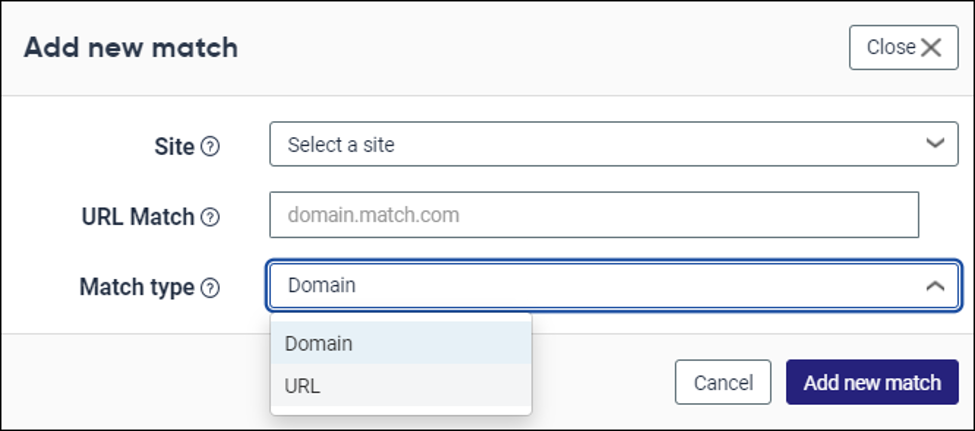
- Click Add new match.
- Select the site you want to add the match to.
- Enter a domain (e.g. domain.com), or a more specific URL match (e.g. https://www.domain.com/subdirectory1/subdirectory2).
- Select the match type either domain or URL.
- Click Add new match.
Expected Result
- Domain or URL match is added
- Analytics data is organized according to the configured rules
Did you find it helpful? Yes No
Send feedbackSorry we couldn't be helpful. Help us improve this article with your feedback.