How to Add a Page to a Behavior Map
Summary
To add a page to a Behavior Map, navigate to Behavior Maps in Analytics, select a page, and add it to begin tracking user interactions.
Before You Begin
Note: The Behavior Map feature does not work on intranets or other sites that require a login as a default. However, if a non-public site is reachable by allowing IP addresses then behavior maps could work by allowing Siteimprove IP addresses.
Steps
Step 1
Go to Analytics > Behavior > Behavior maps from the main menu.
Step 2
Select Add page to Behavior map.
Step 3
Search for the URL or title of the page you want to add.
Step 4
Select the page from the dropdown
(Tip: Typically you should select the version of the page with the highest number of page views. If a page redirects you should add the page URL you are redirected to in order to collect interactions.)
Step 5
Click on Add page. 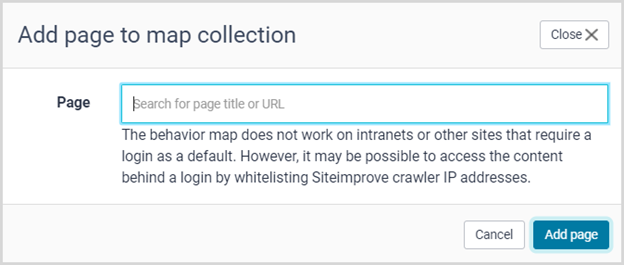
Additional Navigation
The "Go to Account Overview" button above the page list gives an overview of all Behavior maps and the sites they are associated with.
Did you find it helpful? Yes No
Send feedback