How Do I Tag Pages Manually?
Summary
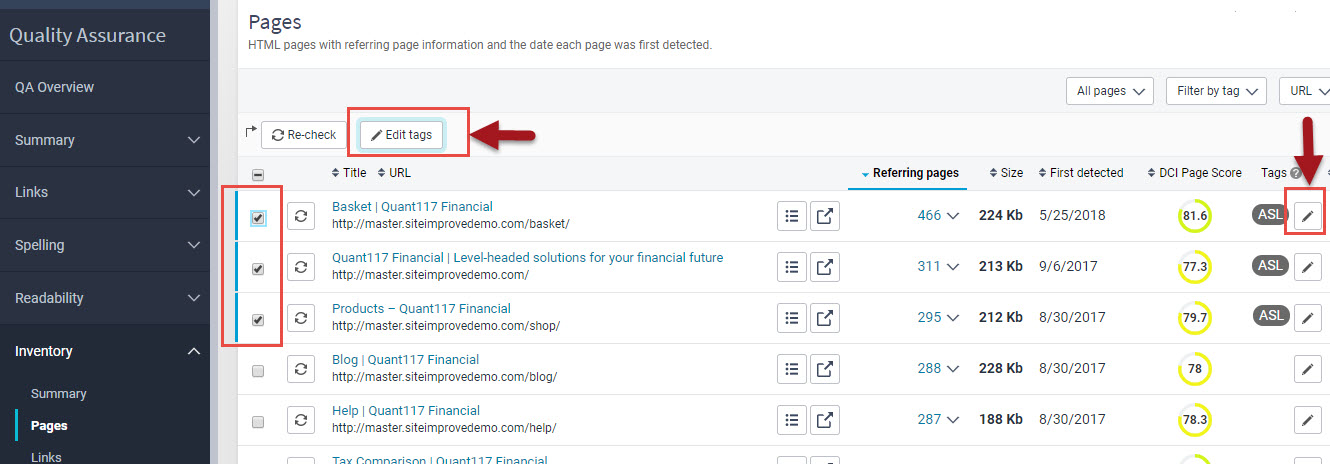
You can manually tag pages from the Quality Assurance > Inventory > Pages table by selecting pages and applying tags.
Overview
Manually tagging pages allows you to quickly apply tags directly within the Quality Assurance pages table for one or multiple pages. This approach is useful for on-the-fly organization, enabling you to label pages as needed for tracking, filtering, and prioritization without relying on automated rules or policies.
Steps
- Go to Quality Assurance > Inventory > Pages.
- Select the page or pages on which you would like to add a tag.
- Click Edit tags.
- Select an existing tag or create a new tag.
- Click Save changes.
Did you find it helpful? Yes No
Send feedbackSorry we couldn't be helpful. Help us improve this article with your feedback.