How to View and Track Support Tickets / Sharing Tickets with Colleagues
Summary
Customers recently inquired how colleagues can see tickets without manually CC'ing them, noting they couldn't find instructions or chatbot answers for sharing tickets.
Overview
The Siteimprove Platform now uses the Resource Center widget (? icon) to access the Help Center home page.
Before you begin
Contact Siteimprove Support to request Company Ticket Access for your account.
Steps
Accessing the Help Center (New Navigation)
- Log in to the Siteimprove Platform.
- Click the Question Mark icon in the top-right navigation bar to open the Siteimprove Resource Center.
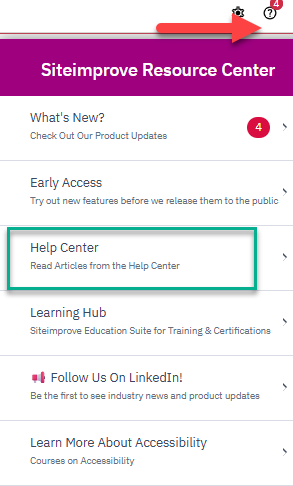
- Select Help Center, then click Help center home page at the top of the side panel.
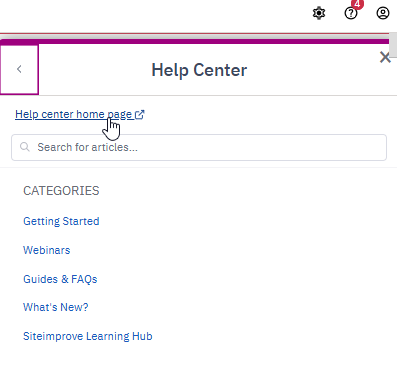
- Click your profile icon in the top-right corner and select My tickets.
How to Share Tickets / View Organization Tickets
Sharing Tickets with Colleagues:
By default, users can only see tickets they submitted. If you need colleagues to view tickets submitted on behalf of your company:
- Contact Siteimprove Support to request Company Ticket Access for your account.
- Once configured, go to My tickets in the Help Center.
- Change the ticket filter from Created by me to Organization Tickets (or filter by Closed/Resolved).
Did you find it helpful? Yes No
Send feedbackSorry we couldn't be helpful. Help us improve this article with your feedback.