Install the Siteimprove Power BI Connector
Summary
To install the Siteimprove Power BI Connector in Power BI Desktop, download the latest .pqx package and place it in Documents\Power Bi Desktop\Custom connectors. Create the folder path if it does not exist. Optionally, remove the legacy Siteimprove.mez file if present. Package versions, thumbprint values, and updates are listed after the installation steps.
Applies to:
Power BI Desktop; Siteimprove Power BI Connector installed using a .pqx package file.
Installing the Power BI Connector Using the Package File
This part of the guide explains how to install the Siteimprove Power BI Connector on the Desktop version of Power BI using the package file. You can find more information on this connector as well on the Siteimprove marketing site.
Adding the Package File
- Download the latest package file from the table here: Package Files, Thumbprint Values, and Updates.
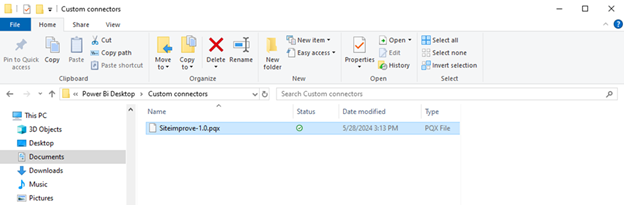
- Place the .pqx file (from within the unzipped file folder if applicable) inside the connectors folder in the path Documents\Power Bi Desktop\Custom connectors on your computer. If the path doesn't exist, you will need to create it by selecting New > Folder and naming the folders and subfolders accordingly.
- (Optional) If you see a “Siteimprove.mez” file under the path Documents\Power Bi Desktop\Custom connectors on your computer, remove it. The .mez file was installed with the old connector that didn't use .pqx files.
Package Files, Thumbprint Values, and Updates
Listed below are the different package versions, thumbprint values, and updates with each version. It is recommended to update to the latest version of the package, which has the latest updates.
- Siteimprove-1-3.pqx (Download link at bottom of article)
- Thumbprint Value: 4455833BFC85DC51AE5362BBBF77793E656C5F24
- Updates: Branding updates; Addition of new API endpoints
- Siteimprove-1-2.pqx
- Thumbprint Value: 2B387210E25036AAF3A4A959AD5C82E7FED6E00
- Updates: Fixed issues with truncated IDs that appear in decimal format.
- Siteimprove-1-1.pqx
- Thumbprint Value: 56F4E70D268F3A82E2ED6B7491B9FB29ECF30F4A
- Updates: Fixed the issues with "Get DCI scores" data point showing [Record] instead of the DCI scores
- Siteimprove-1-0.pqx
- Thumbprint Value: 1CCE4AE209EF8BDD10C50D4A83D0DF6C7FBF3354
- Updates: Major update adding Next Gen Accessibility Data, DCI History, DCI Overview, and Analytics Feedback Survey Data; Supports Power BI Desktop
Adding the Thumbprint Value
To trust third-party connectors in Power BI Desktop, you need to add the thumbprint of the certificate you want to trust to a specific registry value. If this thumbprint matches the one on the connector you want to load, you can safely load it into Power BI Desktop at the recommended security level.
- Locate the Windows Registry Editor program on your computer and open it. The easiest way to do that is to search for “Registry Editor.”
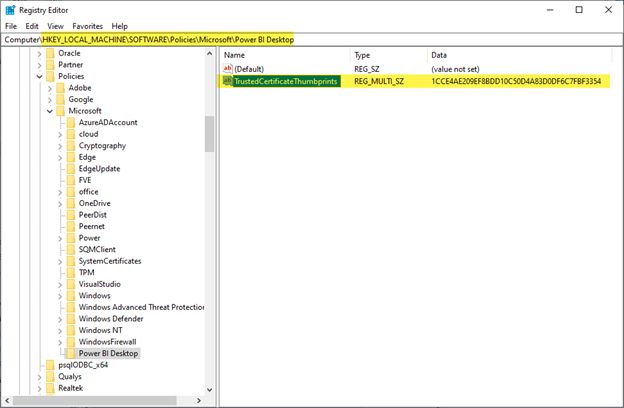
- In the Windows Registry Editor program, find the path: HKEY_LOCAL_MACHINE\Software\Policies\Microsoft\Power BI Desktop.
- If the path doesn't exist, you'll need to create it. To create a new folder in the path:
- Select the folder you want to add the path to.
- Navigate to Edit > New > Key in the top menu bar. Keys are like folders.
- Name the folder/key the part of the file path above that is missing.
- Repeat these steps if multiple items in the path need to be created.
- Select the key “Power BI Desktop” at the end of the path.
- Under the "Edit" in the top menu, select New > Multi-String Value.
- Set the "Name" field to “TrustedCertificateThumbprints” (you may need to go under Edit > Rename to change the Name field).
- Select the new Multi-String value item named “TrustedCertificateThumbprints”, go under the Edit Menu item, select Modify, and set the "Value Data" field to the Thumbprint value for the corresponding file in the table here Package Files, Thumbprint Values, and Updates, and select the "OK" button.
Did you find it helpful? Yes No
Send feedback