Connect Power BI to Siteimprove
Summary
In Power BI Desktop, open Home > Get Data and find the Siteimprove connector. Connect and, if prompted, enter your Siteimprove API Username as the user name and your API key as the password—not your Siteimprove platform login credentials. The Navigator displays the available Siteimprove API data options.
Applies to: Power BI Desktop; Siteimprove Power BI Connector; Siteimprove API credentials created under Settings > Integrations > API > API keys.
Getting Data Using the Connector in Power BI Desktop
There are a couple of ways you can navigate to the Power BI Connector.
- Open Power BI.
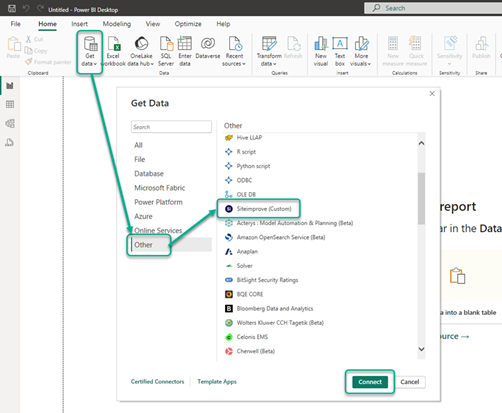
- Go to Home > Get Data > ALL > select Siteimprove (Custom), click Connect". If you are using the latest connector, it should look like what you see in the screenshot below.
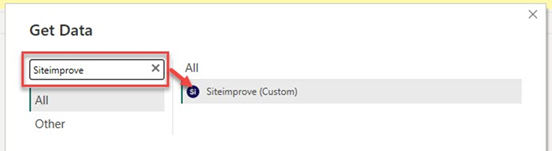
- Go to Home > Get Data and search for “Siteimprove” to find the connector.
- For new installations, a password prompt will come up to enter your Siteimprove API Credentials.
- Enter the "API Username" in the "User name" field and "API key" in the "Password" field.
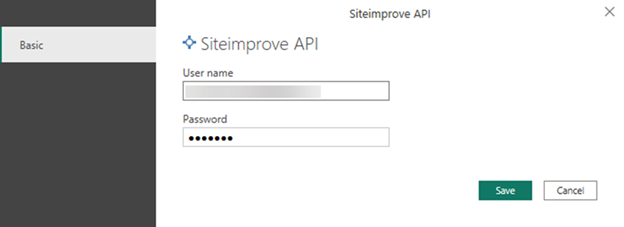
Do not use your Siteimprove platform login credentials in this step.
You MUST enter the API Credentials created in the Siteimprove platform under Settings > Integrations > API > API keys.
For information on how to create API keys, visit: How to Connect to the Siteimprove API.
You may not need to re-enter the API credentials if you have already entered them.
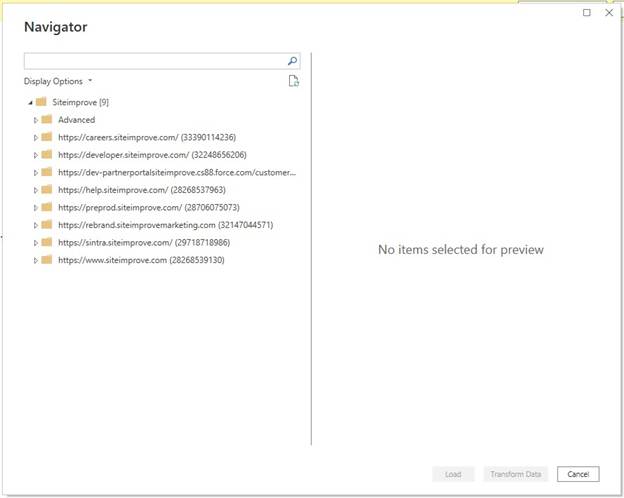
- You can now see the "Navigator," where you can see all available options for you to choose from for data from the Siteimprove API to be used in Power BI reporting.
Did you find it helpful? Yes No
Send feedbackSorry we couldn't be helpful. Help us improve this article with your feedback.