Find and Load Siteimprove Data in Power BI
Summary
The Siteimprove Power BI Connector lets you preview API data in the Navigator and load selected endpoints into Power BI for reporting. Available data depends on the permissions associated with your API credentials and the data exposed through the Siteimprove API. Advanced endpoints support parameters for more specific data requests.
Applies to: Siteimprove Power BI Connector; Power BI; Navigator window; Siteimprove API credentials and associated user permissions.
Procedure
Previewing and Getting Data from Site Folder (s)
- Select the checkbox for the data point you want to view and get data from. You can select multiple endpoints to get data, but you can only preview or enter parameters for one at a time with the Preview window of the ‘Navigator’ window.
- Preview the data in the window.
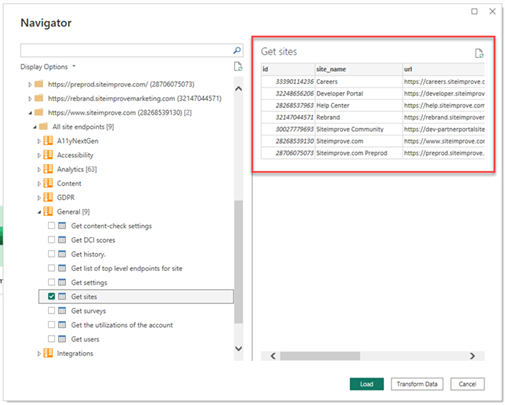
- Select the ‘Load’ button to load the data in Power BI to be used for reporting.
- A loading window will pop up, and data will process (Note: the more data you request, the longer it will take to get the data, and it may fail if too much data is requested). You can then use the data as you choose in the program.
Usage of the Power BI Connector
User Access
The user permissions from the Siteimprove platform are tied to the API credentials entered and are carried over to this integration from the Siteimprove Platform. The connector pulls in data from the Siteimprove Platform via the API for sites and services you have access to within the Siteimprove Platform. So if you don’t have access to something, you may need to check whether you have access to what you are looking for in the platform as well. You can also check to see if you can access the same thing via our Siteimprove API. Not all data in the Siteimprove Platform can be reflected in the API and connectors.
Navigator Window
Clicking and unfolding the tree structure in the "Navigator" window loads specifications for all the contained endpoints.
You can view "Suggested endpoints" or "All site endpoints" under each individual "Site Folder (s)," or you can view endpoints with options to fill in parameters to narrow down to more specific data under the "Advanced" folder. For example, you can modify the time period from the default 7 days to something else under the "Advanced" section. Selecting the individual endpoints will generate a preview of the data before loading it into Power BI and will allow you to adjust parameters for "Advanced" endpoints. 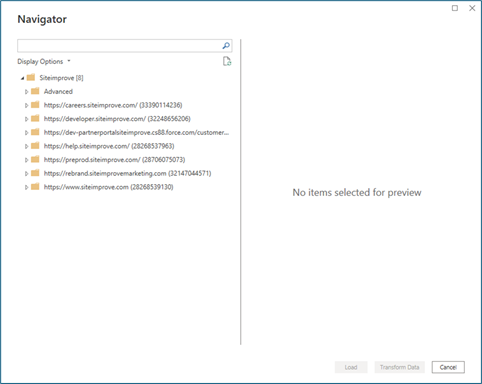
Site Folder (s)
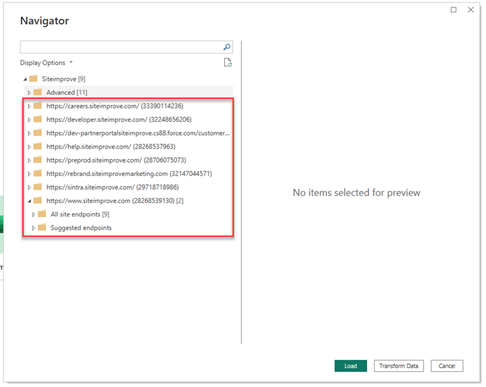
Under the "Advanced" section in the "Navigator" window, you'll find a list of all the sites available to you with their site_id in parentheses (that site_id can be used in the "Advanced" section). Under each site, you will find "All site endpoints" and "Suggested endpoints.
All Site Endpoints
All site endpoints features the list of all general endpoints that don't require specific parameters, such as page_id. The default time period for these endpoints is the last 7 days if a time period is relevant. You can modify parameters for endpoints under the Advanced folder. Click on a specific endpoint to generate a preview of live data available.
Suggested Endpoints
Suggested endpoints features the list of the most commonly used endpoints. Clicking on the individual endpoints will generate a preview of the live data available.
Did you find it helpful? Yes No
Send feedback