Use Advanced Endpoints in the Siteimprove Power BI Connector
Summary
Advanced endpoints in the Siteimprove Power BI Connector support configurable parameters to tailor API data for Power BI reporting. Required parameters must be supplied for an endpoint to return data; optional parameters can narrow results, such as by date range, group, or page where supported. The Navigator provides a preview of the data before loading.
Applies to: Siteimprove Power BI Connector; Power BI; Advanced folder in the Navigator; required and optional endpoint parameters.
Advanced Folder
The "Advanced" section shows you all available API endpoints to select from, along with all possible configuration parameter options that can be filled out.
Here, you have the option to use parameters for the data points to make adjustments to the data returned.
For example, you could modify the date range from the default of the last 7 days or filter data down to a specific group or page if these parameters apply to the data point. You may need to look at other data points to gather the IDs that need to be entered under the parameters, though. Reference Common parameters needed to be entered under the ‘Advanced’ area for help with this. You will need to fill in the required parameter fields for the endpoints to return data, but you may want to fill in the optional parameter fields to get to more specific data. 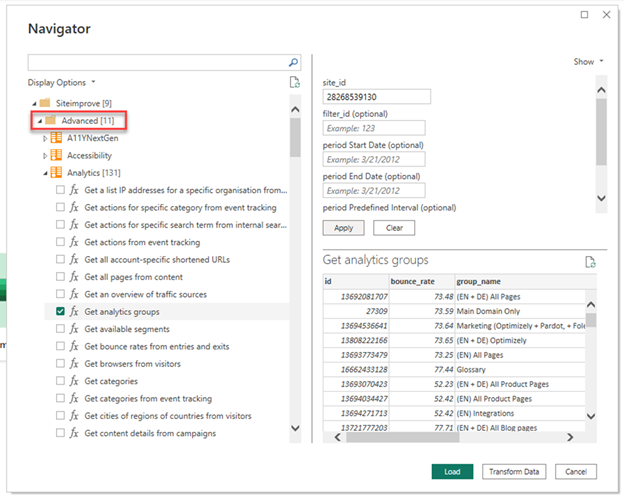
Previewing and Getting Data from "Advanced" Endpoints
- Select the checkbox for the data point you want to view and get data from. You can select multiple endpoints to get data, but you can only preview or enter parameters for one at a time with the Preview window of the ‘Navigator’ window. Whatever folder is selected is the endpoint you are modifying the parameters for.
- Enter the required data into the fields in the top section of the Preview area of the ‘Navigator’ window and select the ‘Apply’ button to see a preview of the data.
- Select the ‘Load’ button to load the data in Power BI to be used for reporting.
- A loading window will pop up, and data will process
- You can then use the data as you choose in the program.
Note: The more data you request, the longer it will take to get the data, and it may fail if too much data is requested).
Did you find it helpful? Yes No
Send feedback