Using the Policy Library
Answer
Use the Policy Library to quickly add pre-configured Policies based on web governance best practices to your Siteimprove sites. The Policy Library contains ready-made policies that can be applied across all sites or selected sites within your account.
Video introduction to Policy Library
How to add a Policy from the Library
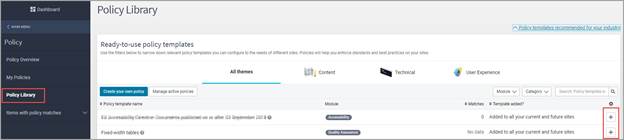
- Select Policy from the main menu.
- Select Policy Library.
- A list of pre-configured policies will now be displayed in the platform. Click the Add Policy button for the policy you want to add to your website.
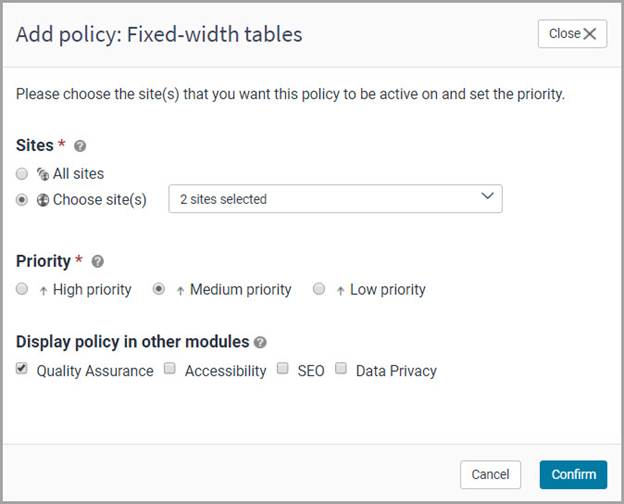
- Choose whether the policy should be active on all sites of your Siteimprove account, or only on specific sites.
- Set the priority level for the policy.
- Choose if you want to make the policy visible in other modules.
- Confirm your changes by clicking the Confirm button.
Result
You can now view the policy that you've added in the platform, under Policy > My Policies.
Additional Notes
Note: If you use Policy Library to create a Policy that already exists in your account, both Policies will show up in the Policies section of the platform. You should delete one of the Policies to prevent redundancy.
Related articles
Did you find it helpful? Yes No
Send feedbackSorry we couldn't be helpful. Help us improve this article with your feedback.