How to create an organization filter in Siteimprove Analytics
Summary
You can filter analytics data by organizations by creating a new filter in Analytics Settings, selecting the Organizations filter element, and configuring inclusion or exclusion criteria. Once created and activated, the filter can be applied from the Analytics module.
Overview
The Siteimprove Analytics module now allows users to filter their analytics data by organizations (see: Analytics: How do I use the Organizations data?). An Organizations filter is used to segment visitor data by looking at which organization the visitor is associated with. This addition to the filter library allows customers that utilize IP Anonymization in Siteimprove Analytics, to filter for organizations as the Organizations filter does not look at visitor IP addresses, just the organization name. This article will show you how to set up an Organizations filter in Siteimprove Analytics.
Before you begin
- Ensure you have access to Analytics Settings
- Confirm you have permission to create filters
- Identify the organization name(s) you want to filter
Steps
Create a new filter
- Select Analytics from the main menu.
- Select Analytics Settings.
- Select Filters from the sub-menu.
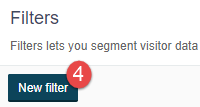
- Click New filter.
Configure the filter
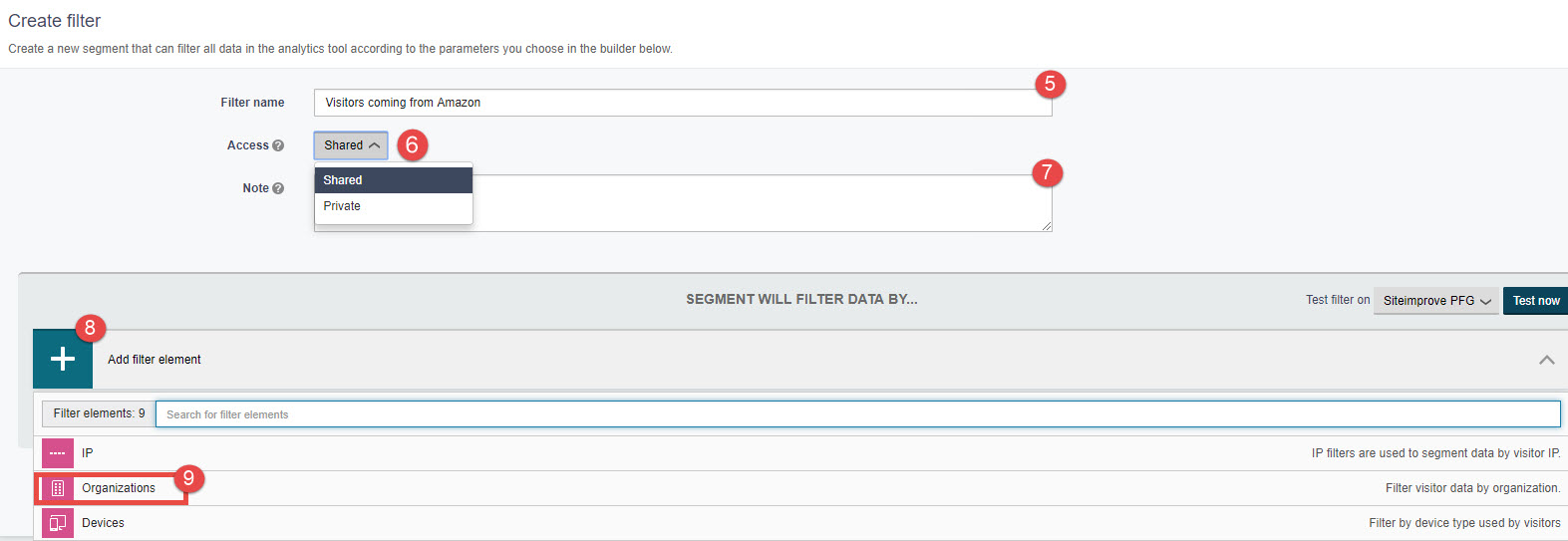
- Add a filter name. Remember to be descriptive, for example, use the specific organization name you will be tracking. In our example below we used Amazon.
- Choose the access level of the filter. If shared, every user on your Siteimprove account will be able to apply the filter. Private filters are only visible to the user who creates it.
- Add a note to describe the purpose of the filter.
- Click Add filter element.
- Select Organizations.
Define filter conditions
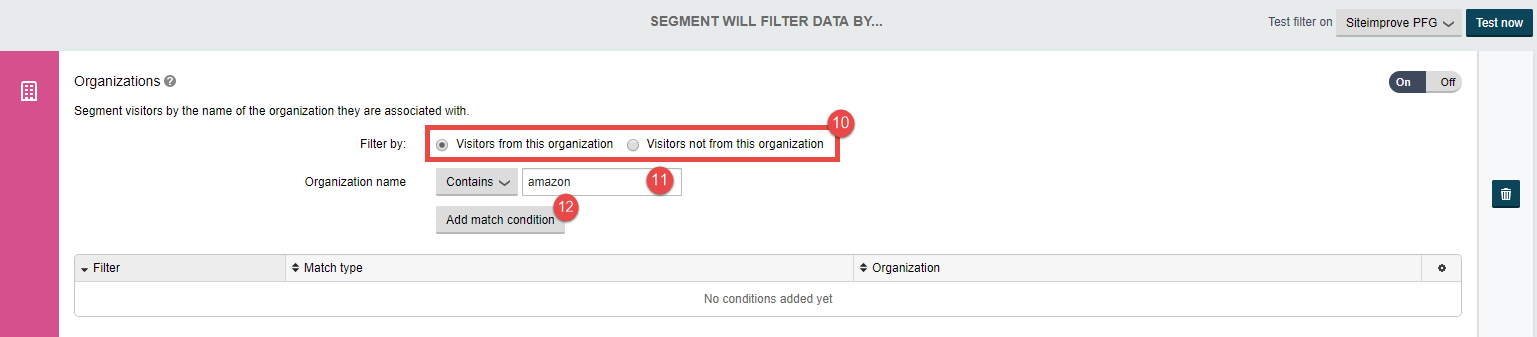
- Choose whether you want the filter to include visitors from the specific organization or alternatively, exclude visitors from the specific organization. Essentially, this means that "Visitors from this organization" will only include (filter) those coming from Amazon. "Visitors not from this organization" means that the filter will include all visits except those from Amazon.
- Add the organization's name. The name you enter here will not be case-sensitive.
- Click Add match condition. Add more conditions if you'd like (repeat steps 10 and 11).
Finalize the filter
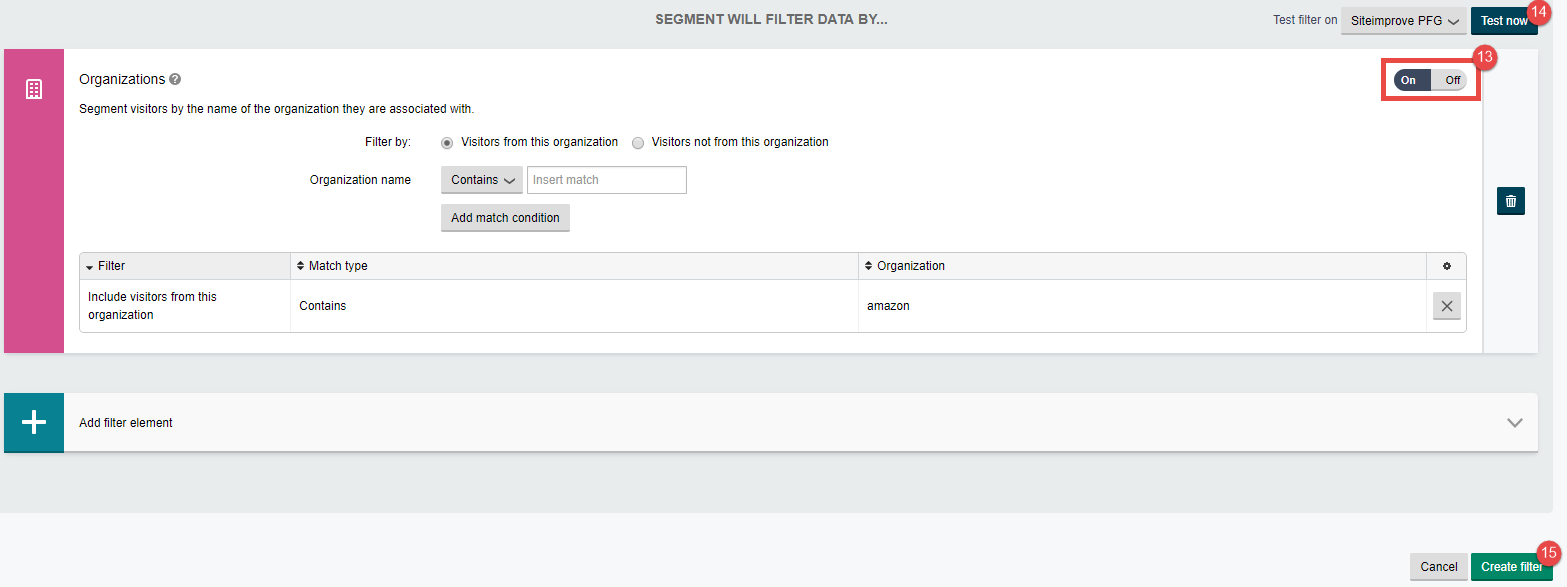
- Choose whether the filter should be activated on your account (On/Off). If the filter is activated it will show up in the Filter list in the platform.
- Test whether the organization name is returning any results by clicking on the Test now button illustrated below.
- To finalize the organization's filter setup, click Create filter.
Result
If you have activated the filter (On), you will now be able to see it in the Filter drop-down in the Analytics module.
Did you find it helpful? Yes No
Send feedback