How to Use Dynamic Content
Summary
Capture snapshots of dynamic page states using the Siteimprove Chrome extension to analyze accessibility, QA, and SEO performance.
Capturing Snapshots
- Install the Chrome Extension:
- Download and install the Siteimprove Dynamic Content Chrome extension from the Chrome Web Store, and complete the extension setup flow.
- Create a user flow:
- Create a user flow either in the Dynamic Content section of the Siteimprove platform or directly within the Browser extension.
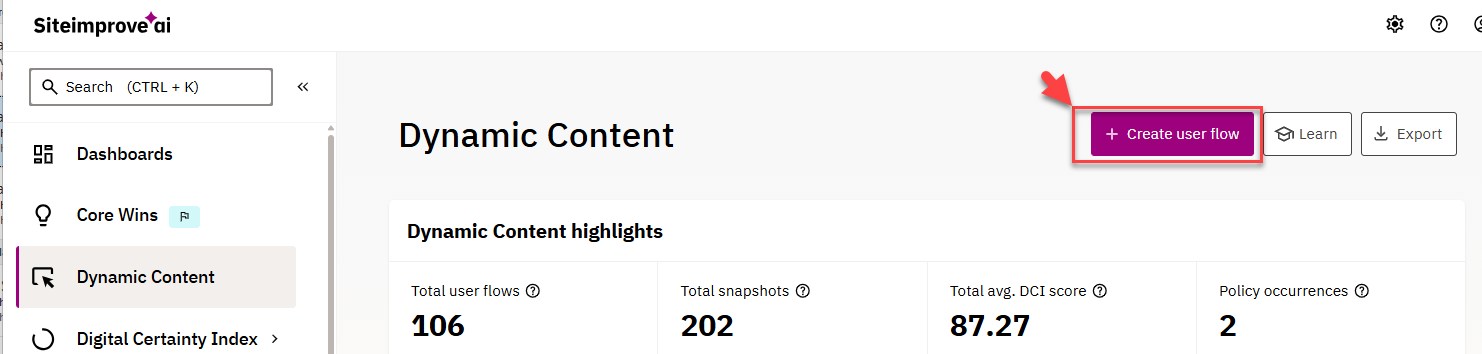
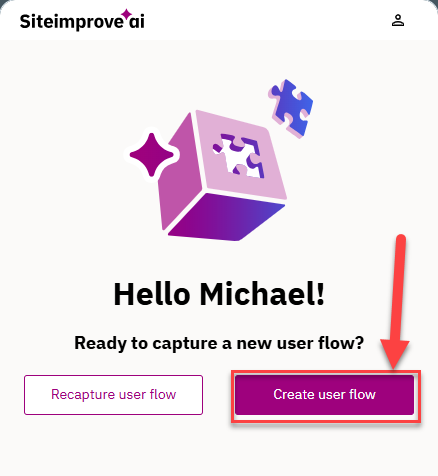
- Give the user flow a name and a description to help identify it later.
- Add the start-URL of the user flow. This should be a page that can be reached without having gone through any manual interaction in the user flow. It allows us to generate links for the created user flows, to find them quickly later, and to recapture when necessary.
- Press “Create” at the bottom of the extension.
- Create a user flow either in the Dynamic Content section of the Siteimprove platform or directly within the Browser extension.
 Capture a Snapshot:
- Navigate to the start-URL of the user flow you want to capture.
- Use the extension to capture the current state of the page. This captures the whole document object model (DOM) of the page – all visible content and elements.
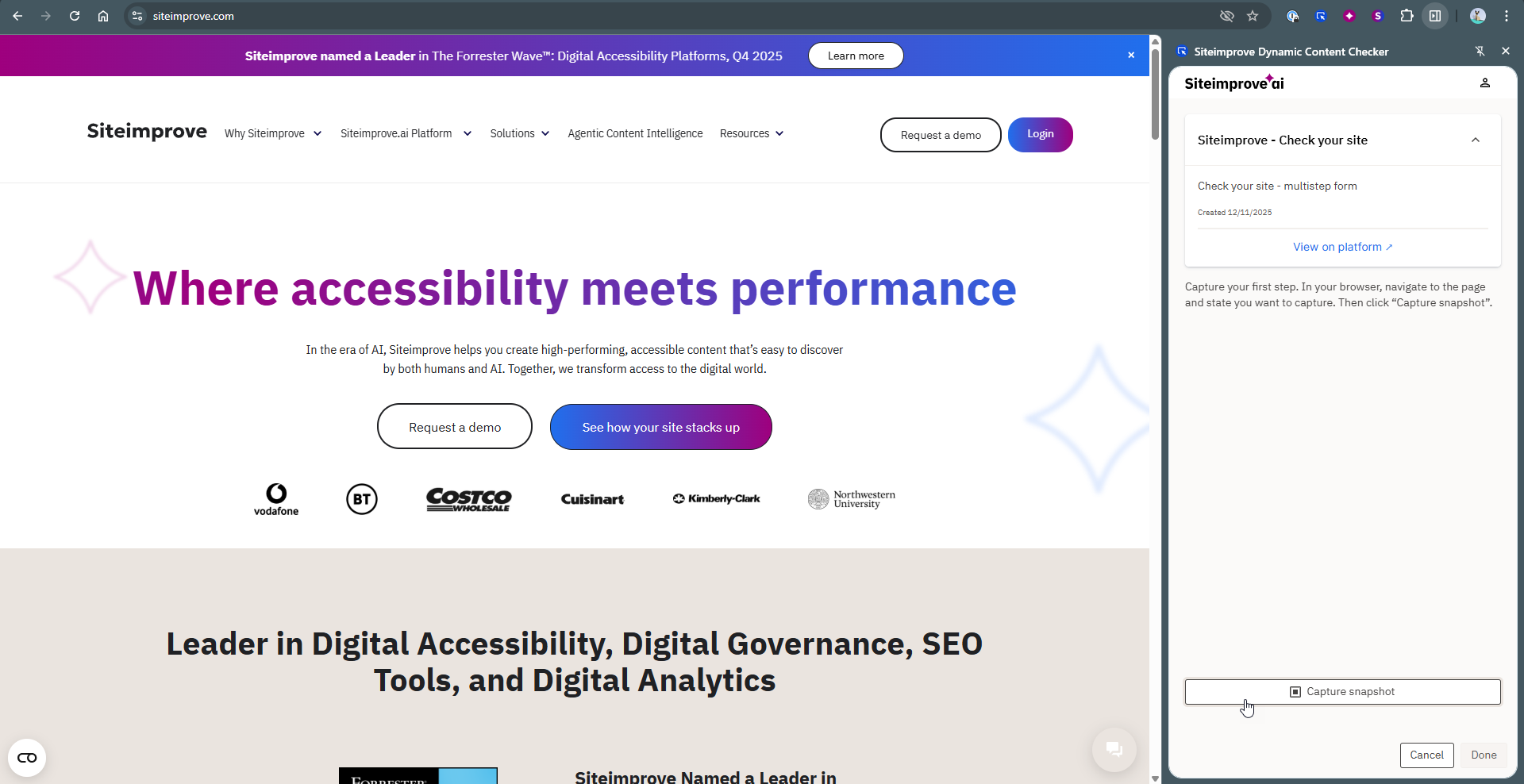
- Note that capturing a snapshot will not include the value of text fields or choices in selections. This means Siteimprove will not store names, credit card numbers, or specific selections from user flows if they are visible in text fields or selections on the captured state of the page.
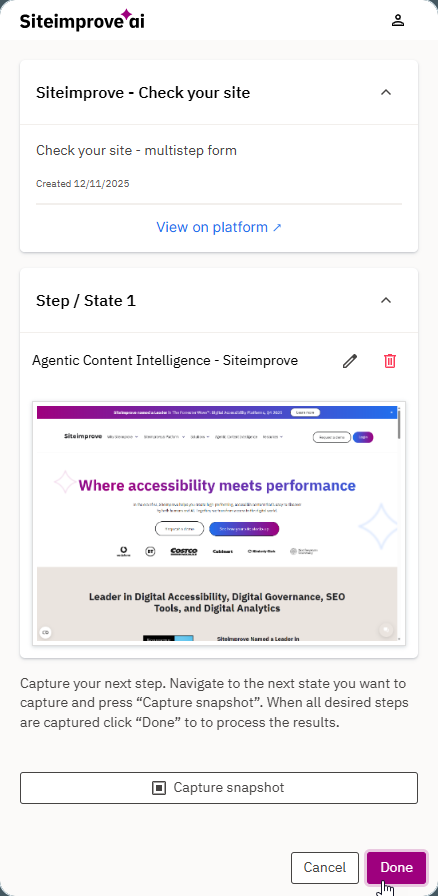
- Repeat the capture process for all of the steps you want to check within your user flow. Once you captured the first step, navigate to the second step and then capture a snapshot of it. Then navigate to the third step and capture a snapshot of that one.
- Interact with dynamic elements on pages to include them in the snapshot when you capture it. This might include tabs, elements to unfold, or similar elements.
- If you are navigating between different steps or states on only one URL page, use the Edit Name button to edit the name of the step. The default name of the step is the title of the page URL you are on. It might in be the same throughout your whole user flow if the page title doesn’t change from step to step.
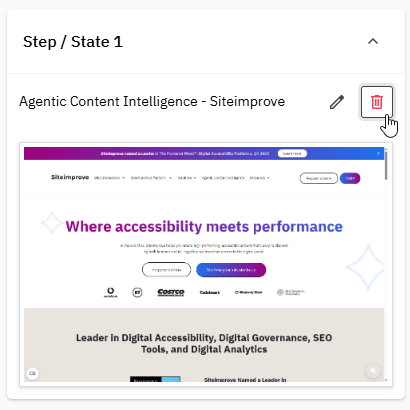
- If you have captured a snapshot incorrectly, use the Delete button. You can then capture a snapshot of a different state of the page that you are on.

- When all steps in the user flow have been captured, press done. This initiates the content check process and might take a few minutes. We recommend checking back on the user flow details in the platform a few minutes later.
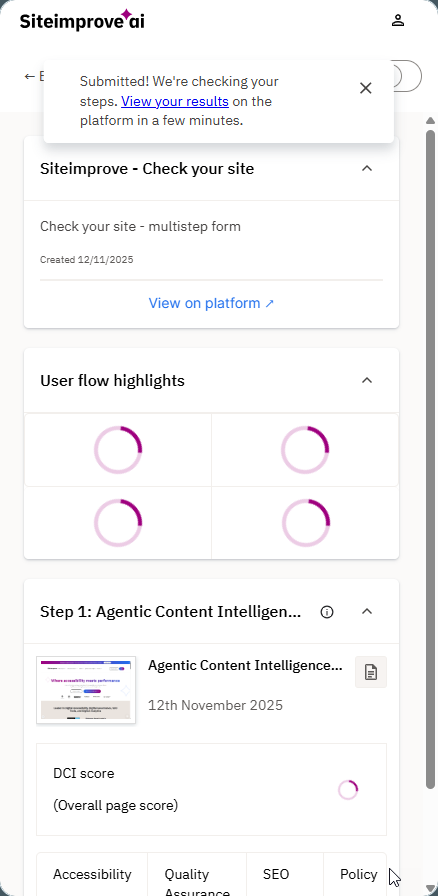
- The extension will update with the results when the check is done. So if you want to work on it in the browser, you can simply keep the extension open and you’ll see when the results are in.
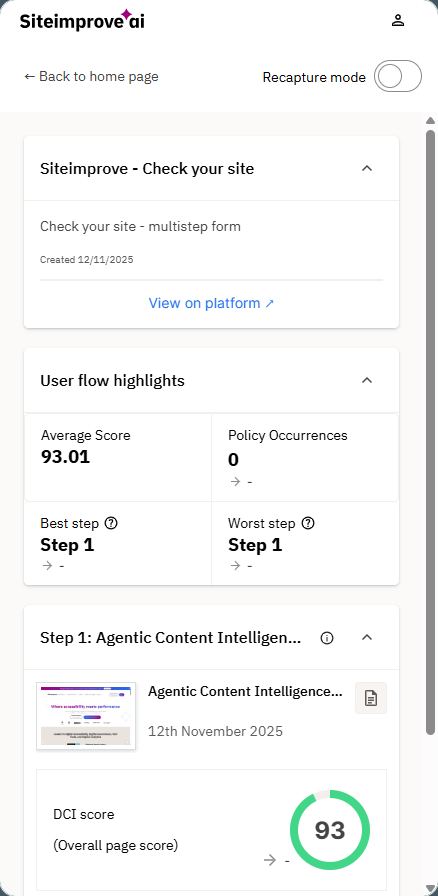
- When all is calculated then either directly jump into the page reports from the extension, or navigate to the platform to view the details.
Store and Analyze
- Overview:
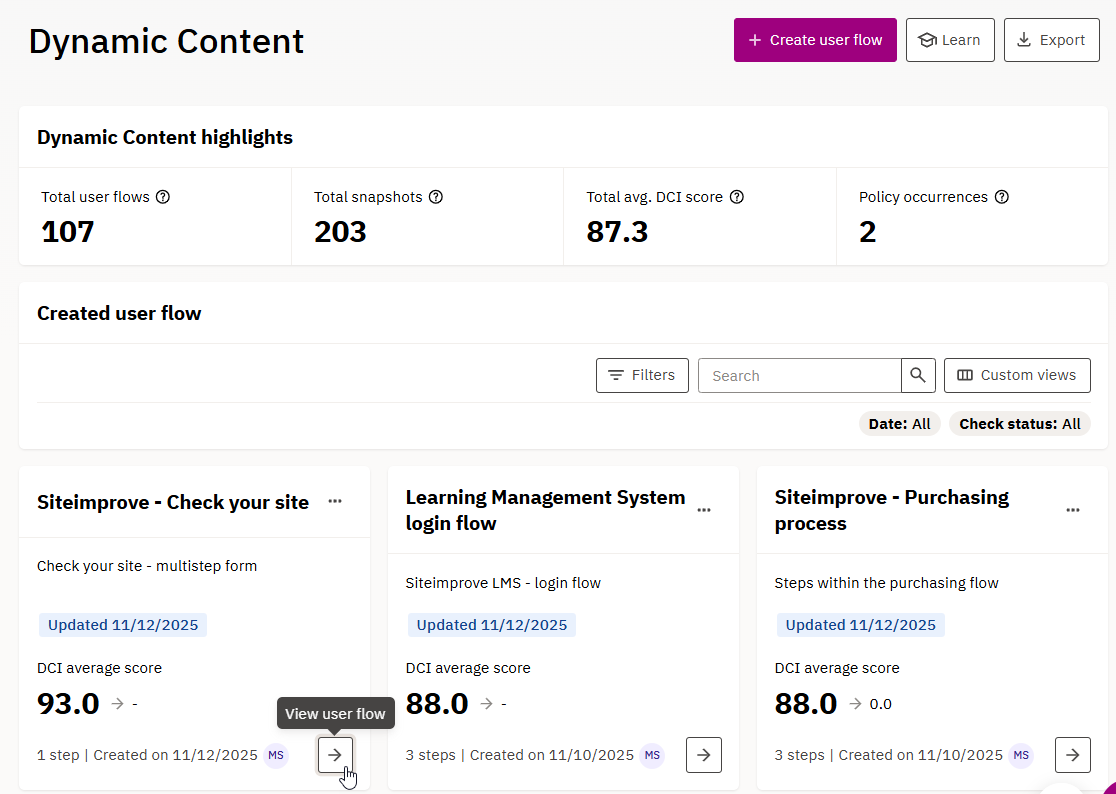
- Find your user flows in the user flow overview when entering the “Dynamic Content section.” You can choose between a Card view and a List view.
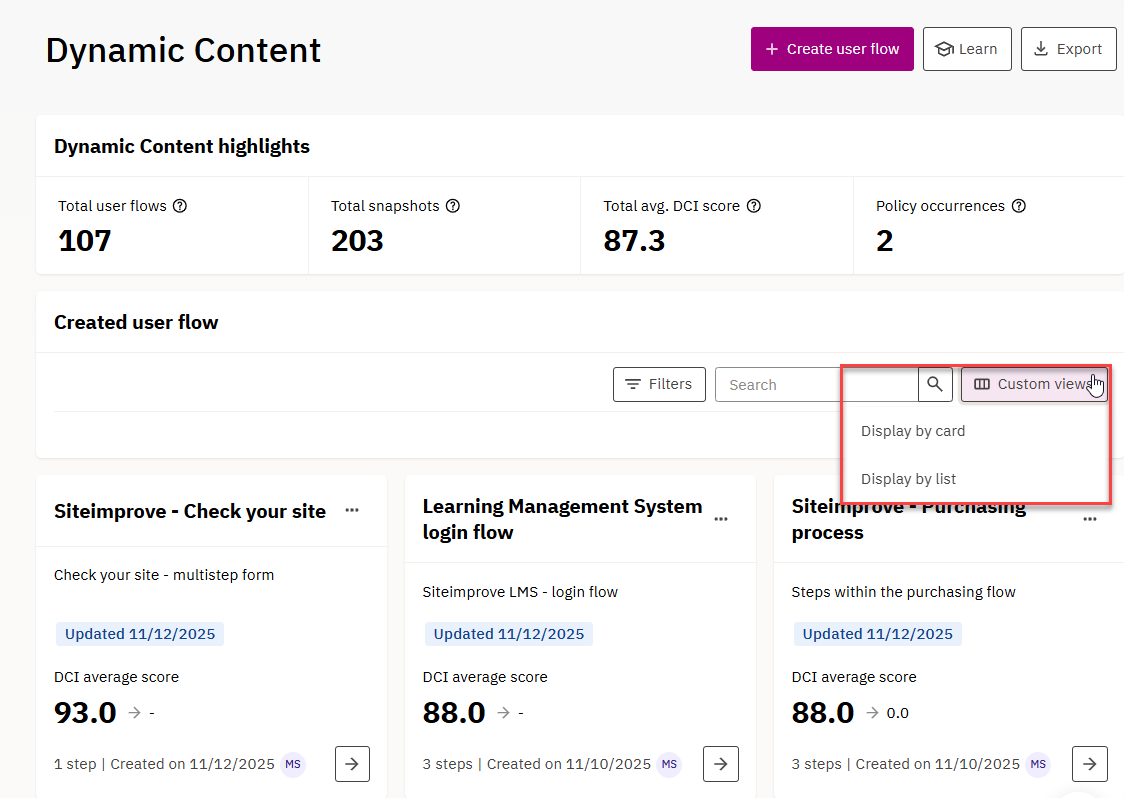
- In the List view, you’ll see a number of sorting options for easily finding your user flows.
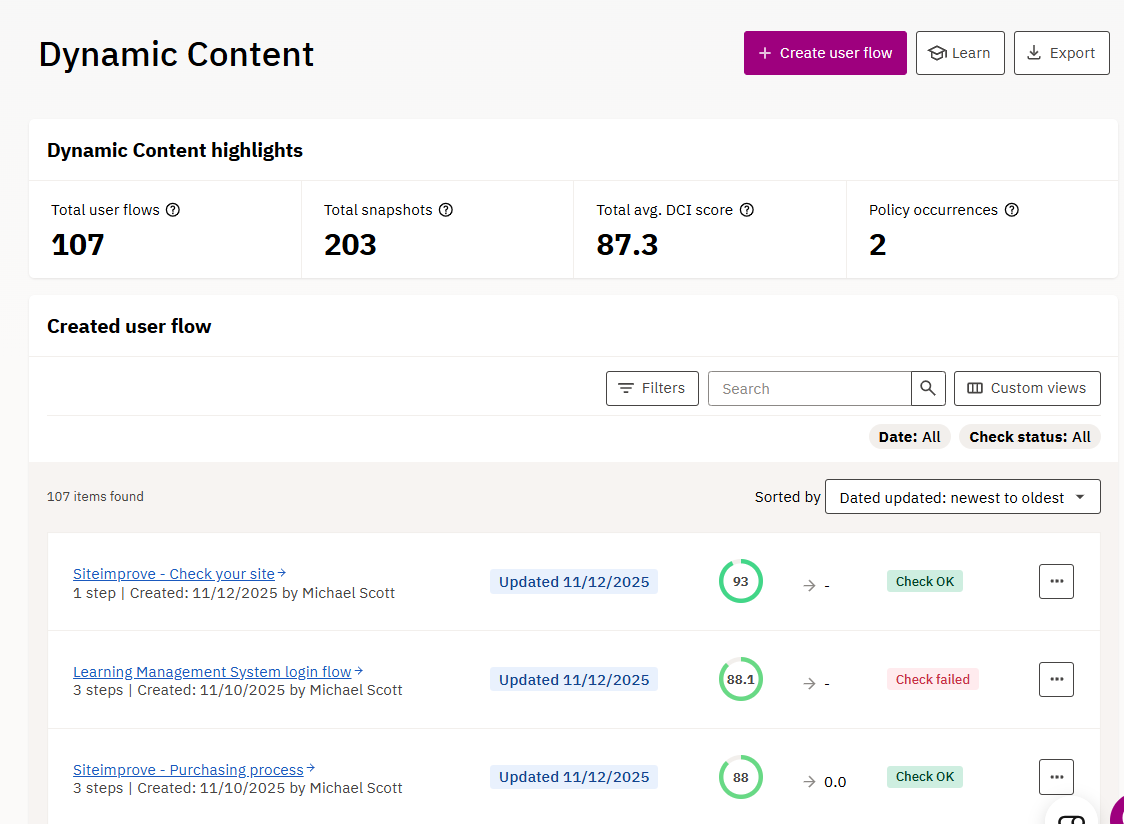
- In the List view, you’ll see a number of sorting options for easily finding your user flows.
- The user flow overview shows the title and description of the user flow as well as the creation date and the user who created it. In the user flow details you’ll also see the last person who updated the user flow with recaptured snapshots.
- Use the search box to find the user flow you want to review, if you have many of them created. It searches through the name of the user flow (not through the description).
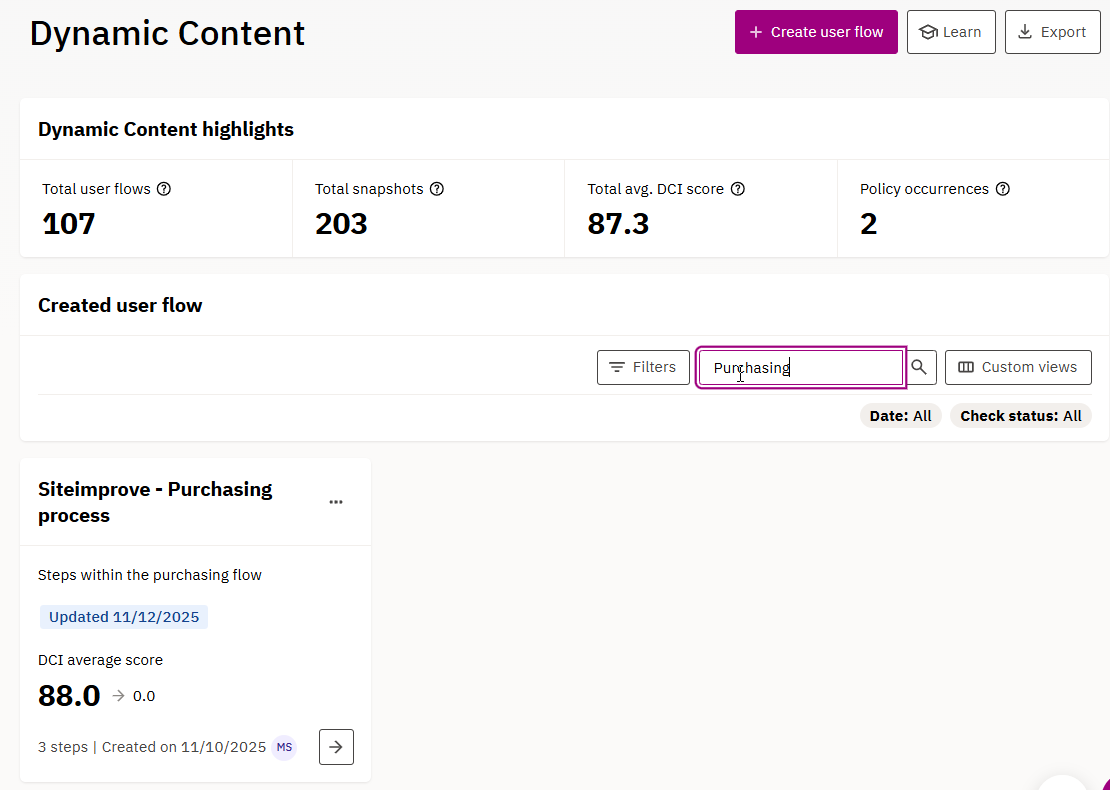
- Find your user flows in the user flow overview when entering the “Dynamic Content section.” You can choose between a Card view and a List view.
- Access Page Reports:
- Navigate to the “Dynamic Content” section in your Siteimprove account and to the user flow you want to view to reach the user flow details page.
- Select the Page Report of the snapshot you want to review.
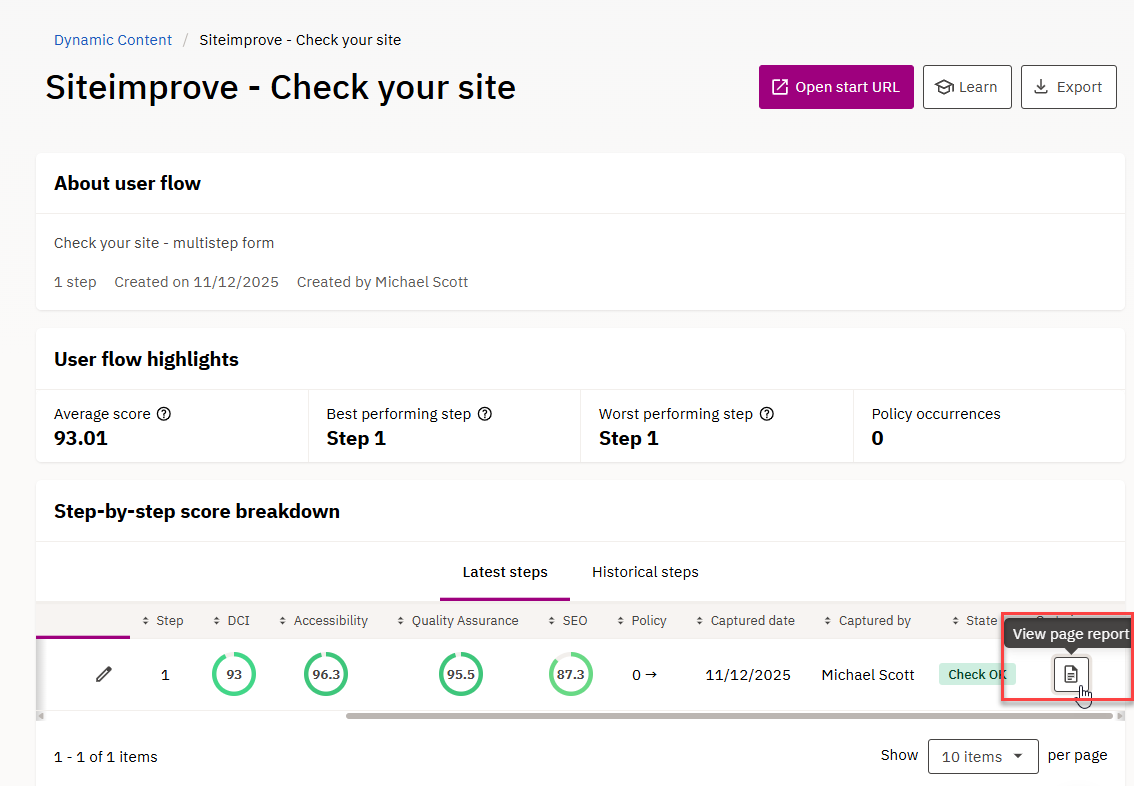
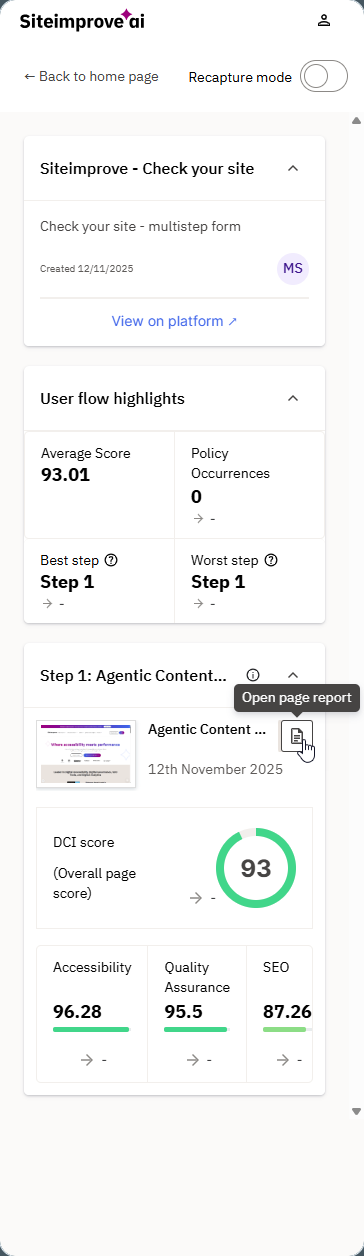
- Alternatively, you can find a link to the page report from directly within the browser extension.
- Navigate to the “Dynamic Content” section in your Siteimprove account and to the user flow you want to view to reach the user flow details page.
 Analyze Issues:
- Use the DCI score to gauge the overall quality of the user flow.
- Review the page reports, which highlight all identified issues across Siteimprove’s content products.
- Page reports for snapshots are stored in the platform for 180 days or until they are replaced by a new snapshot of the step when recaptured. After this time, they are discarded for data security reasons.
- Share the page reports:
- Share the report with colleagues or stakeholders for remediation using the share button inside the page report.
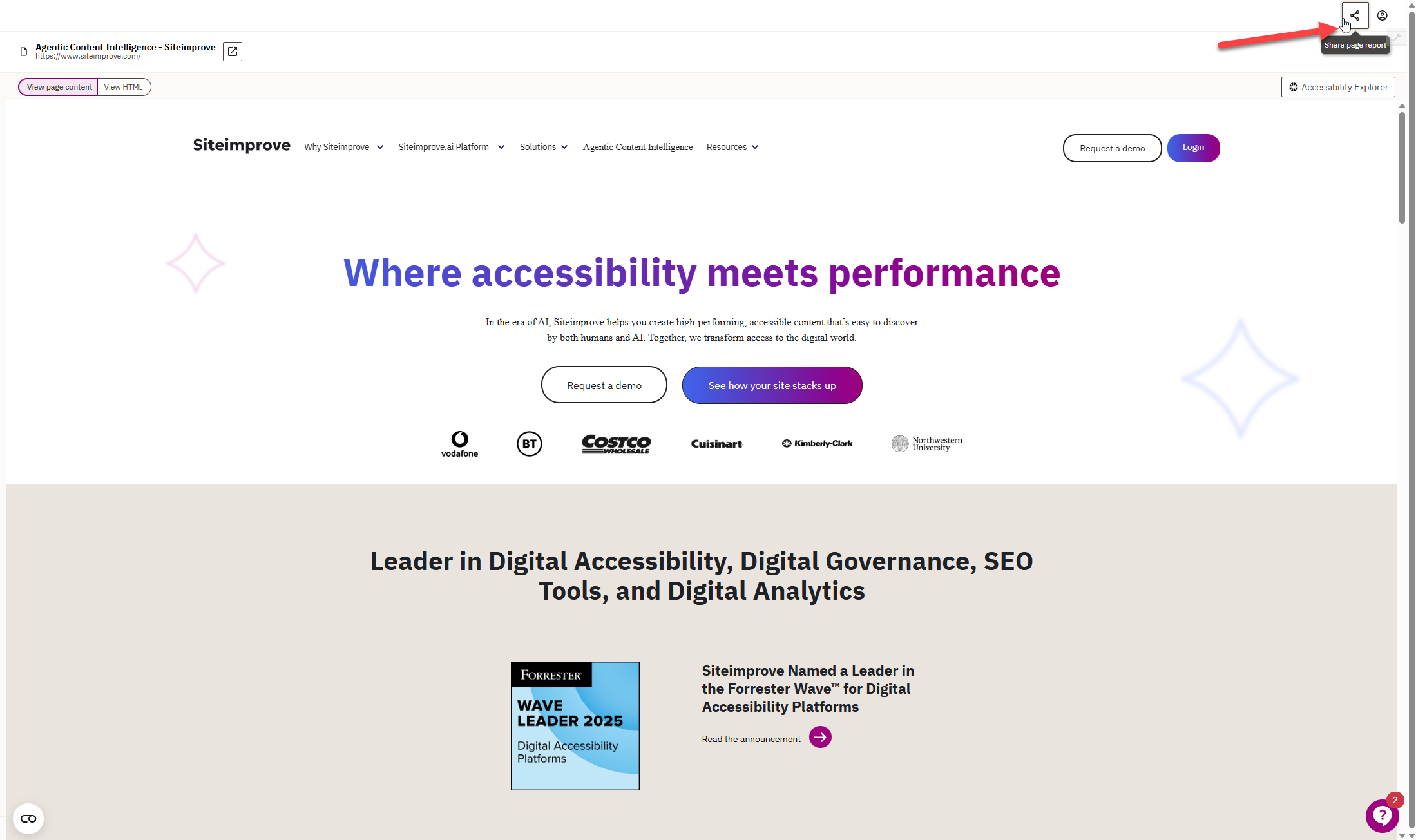
- Share the report with colleagues or stakeholders for remediation using the share button inside the page report.
Did you find it helpful? Yes No
Send feedbackSorry we couldn't be helpful. Help us improve this article with your feedback.