How-To: Capture Snapshots
Answer-first Summary
Recapture snapshots to monitor improvements and track progress across dynamic content user flows.
Steps
Progress Monitoring: Recapture snapshots to monitor improvements and track progress over time.
Monitoring Progress / Recapturing Snapshots
- Recapture Snapshots:
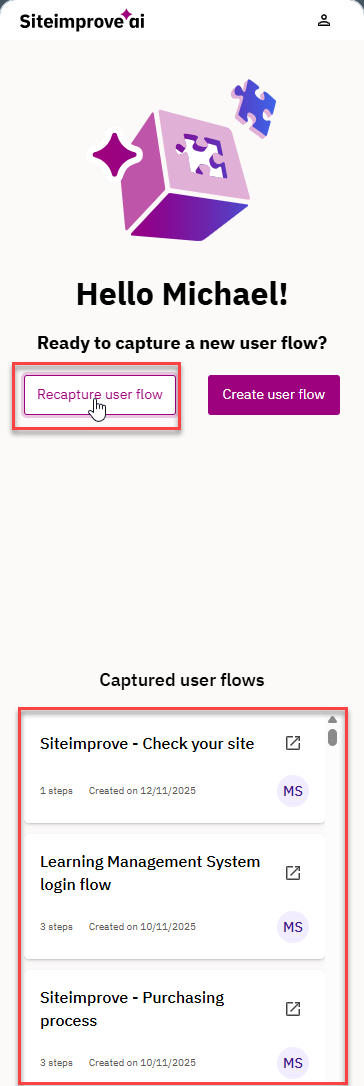
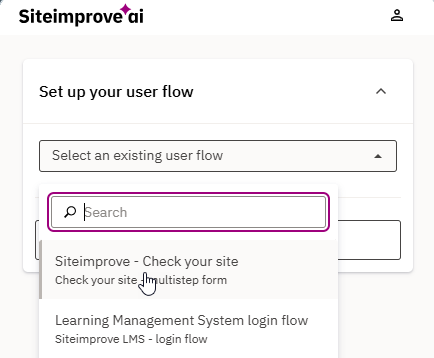
- Find the user flow you want to recapture within the browser extension. Either choose from the captured user flows that you see directly when logging into the extension, or click on “re-capture user flow” to search for the user flow you want to recapture.
- Navigate to the start-URL of your user flow.
- Use the recapture functionality to take new snapshots of the steps in your user flow. The recapture functionality can be found as a slider in the right upper side of the browser extension when choosing an existing user flow.
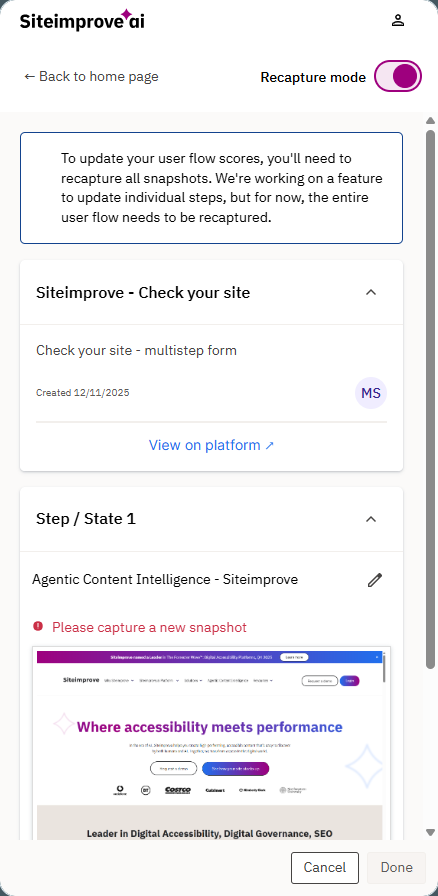
- In the current version it is possible to recapture any step in the existing user flow. It is not currently possible to extend the existing user flows with more steps, or to delete steps from a user flow.
- When recapturing steps in a user flow, the old snapshots are discarded. This means that we still keep the DCI scores to track the overall improvements on the scores, but we remove the page report for the old snapshot. The new page report from your latest captured snapshot will be available instead.
- Select “Done” to finish recapturing the user flow.
- Find the user flow you want to recapture within the browser extension. Either choose from the captured user flows that you see directly when logging into the extension, or click on “re-capture user flow” to search for the user flow you want to recapture.
- Track Improvements:
- Monitor the progress of accessibility and other content improvements as you recapture them. Navigate to Dynamic Content > User Flow Details of the user flow you want to inspect.
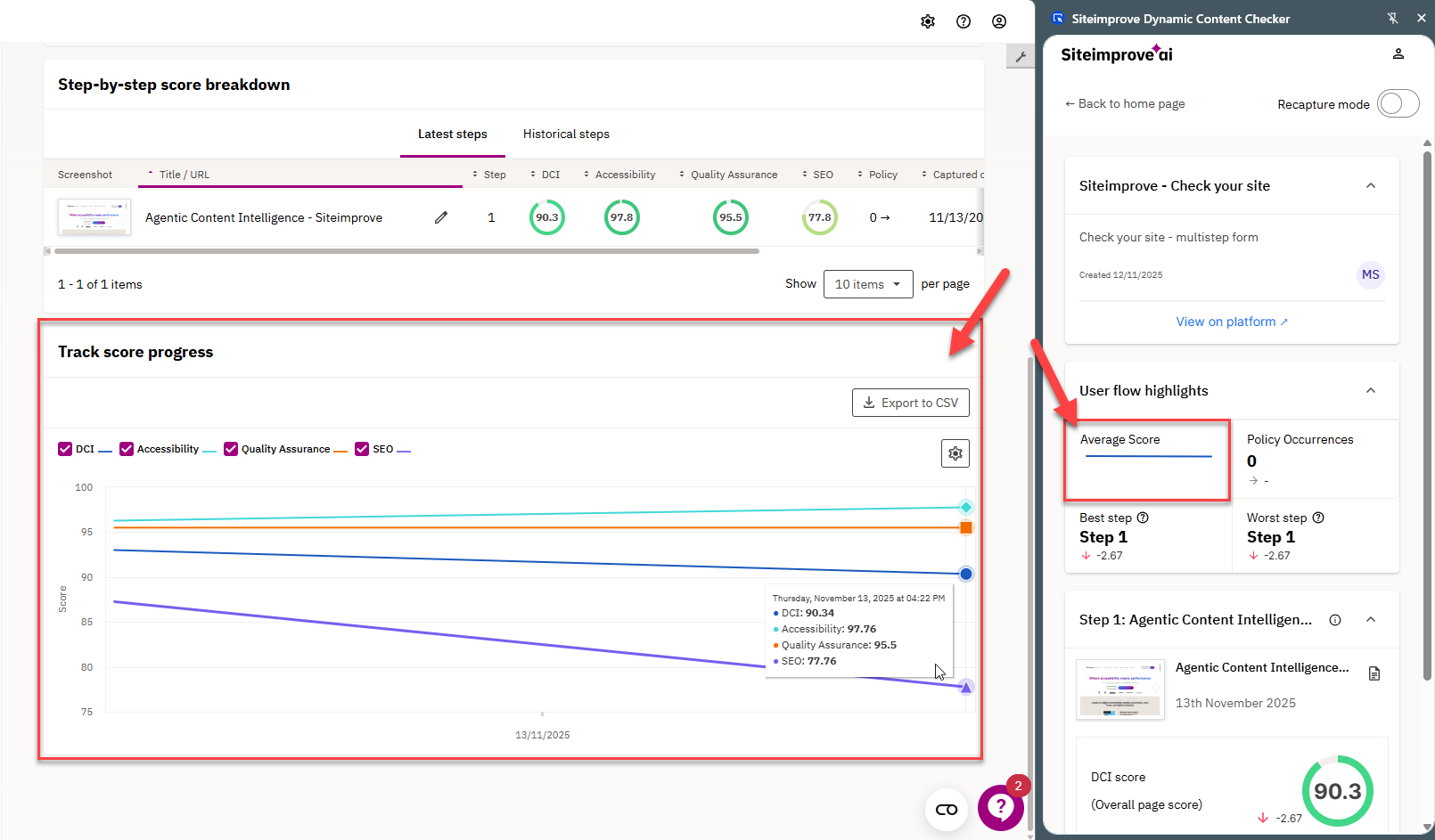
- You will find the latest captured snapshots in the left tab, and the historical snapshots in the right tab.
- The user flow details show a progress graph, displaying the user flow’s average DCI score over time. It also highlights the best and the worst performing steps, according to their DCI scores.

- Export options for the data within user flows are, at the time of writing this article, still in progress. We hope to add export options to the product before long. Screenshots of of things including scores and user flows, with appropriate Alt Text included, can be used to demonstrate compliance to stakeholders.
Note: For certain accounts, it is necessary to activate the Dynamic Content product before being able to use it. The first user on the account to enter the product will be prompted to activate Dynamic Content – for themselves and for all other users. This one time action can take up to 15 minutes due to a backend process running. For any other questions, reach out to your Customer Success Representative for more information.
Did you find it helpful? Yes No
Send feedbackSorry we couldn't be helpful. Help us improve this article with your feedback.