How to implement Siteimprove Analytics via Tag Manager
Overview
If you utilize a tag management service like Google Tag Manager you can still utilize Siteimprove Analytics by adding the Analytics JavaScript through the tag manager.
Steps
1. Add Tag Manager to your site
Be sure to follow the instructions for your tag management tool of choice to install it correctly.
2. Create a new Custom HTML Tag
If we use Google Tag Manager as an example you will want to paste the Tag Manager script on your site first. Once that is done you need to log in to the Tag Manager account and create a new Custom HTML Tag.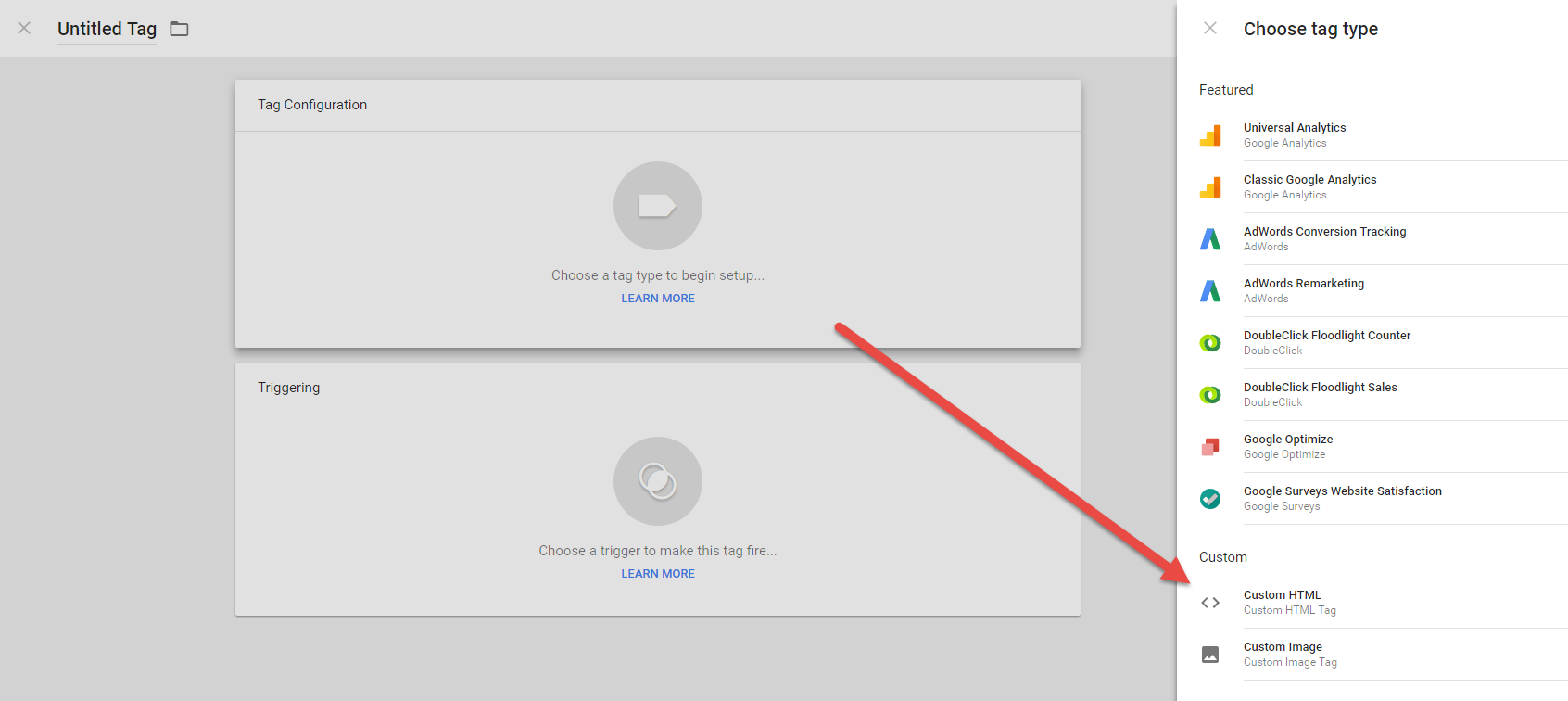
3. Add the Analytics JavaScript
Next, add the JavaScript (1).
4. Configure tag settings
In 'Advanced Settings' change 'Tag firing options' to 'Unlimited' (2).
5. Configure triggers
Finally, chose triggering that includes firing script on DOM/page load, like: 'DOM Ready', 'Page View' or 'Window Loaded' (3).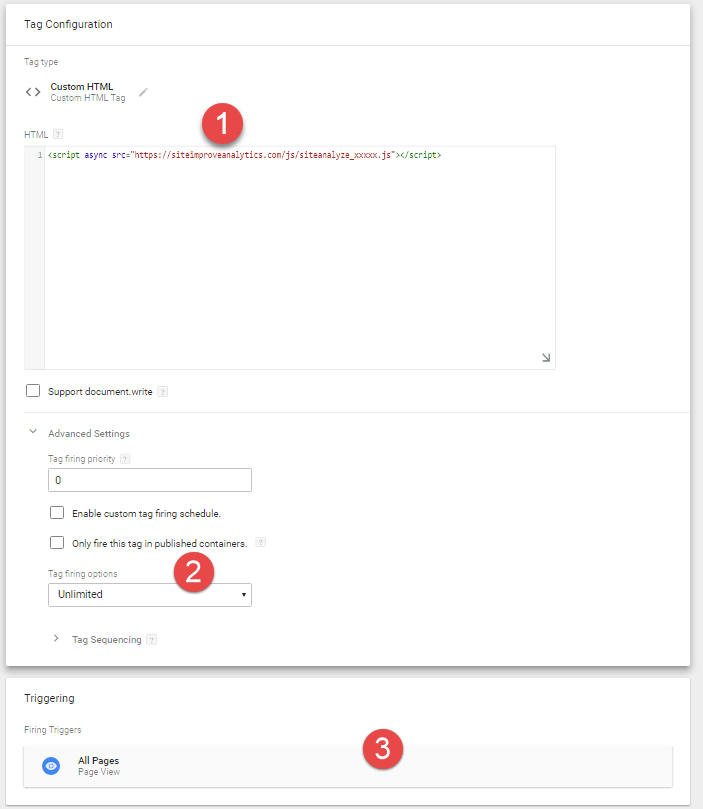
Important: Please ensure that the Siteimprove Analytics script is configured to load asynchronous in your Tag Manager.
Related Article
Did you find it helpful? Yes No
Send feedback