How to Find Text Inside PDFs with PDF Policies
Answer
PDF policies let you find every PDF on your website that contains, or doesn't contain, specific text, such as an old department name, an outdated address or a word your organization doesn't allow. You create a PDF policy with the new PDF text rule, review the matching PDFs, and open each PDF in the PDF Report to see exactly where the text appears.
Applies To (Environment)
- Product / Service: Policy
- Version: [add release, e.g. October 2026]
- Platform / OS / Browser: Siteimprove platform. Not available on the Siteimprove FedRAMP environment.
- User role / permissions: Policy management access. Regular expressions in the PDF text rule are available to admin users only.
- Preconditions: your PDFs are crawled by Siteimprove.
Before You Begin
Policies are created in the Siteimprove Policy module from a Category and one or more Rules. PDFs now have their own category, next to pages, files and media.
A PDF policy offers the rules that apply to PDFs:
- PDF text (new): searches the text inside each PDF.
- PDF title
- Link in PDF
- the rules that apply to all documents.
For example, if your organization renames a department, a PDF policy can list every PDF that still uses the old name.
If you already use content policies to check the text on your webpages, you can now run the same checks on your PDFs.
Create a PDF Policy
Option 1: Create a PDF policy from scratch
- Click My Policies > Create policy.
- Under What do you want to monitor?, select PDFs.
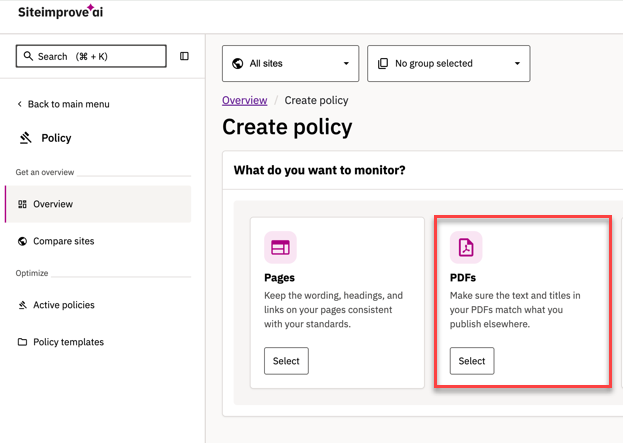
- Configure the policy with the PDF text rule and any other rules (see Configure Your PDF Policy below).
- Under Name and describe, give the policy a name. Optionally, add a note and set a priority.
- Under Set scope, choose the sites the policy should check.
- Under Configure access, choose who can see the policy.
- Click Create policy.
The policy runs as soon as you create it, and the matching PDFs appear in its results.
Option 2: Duplicate an existing PDF policy
- Go to My Policies.
- Duplicate a PDF policy that is close to what you need.
- Change the rules, name and scope, and save.
Note: Ready-made PDF policies are not yet available in the Policy Library.
Configure Your PDF Policy
PDF text rule
The PDF text rule finds PDFs by the text inside them. Choose how the text should match:
- Contains: the text appears anywhere in the PDF.
- Starts with / Ends with: a word starts or ends with the text.
- Case sensitive: select this to match upper and lower case exactly.
- Regular expression: admin users only. Use this for advanced patterns.
Use Multiple Matches Within a Rule
Within one rule, you can add several OR matches by clicking Add another match. A PDF matches the rule if it contains any of them. For example, enter both the old and the new spelling of a name.
Include or Exclude Matches
- Include: finds PDFs that contain the text.
- Exclude: finds PDFs that don't contain the text. For example, use it to find PDFs that are missing a required disclaimer.
Use Multiple Rules
Combine the PDF text rule with other rules using And include, for example a PDF title rule. A PDF matches the policy only if it matches all of the rules.
Review Your Results
- Go to My Policies and open your PDF policy.
- Review the list of PDFs that match the policy.
Policy checks your PDF policies again after each full crawl of your site. When you fix a PDF, it disappears from the results after the next crawl.
Find the Text Inside a PDF
- In your policy results, click a PDF to open it in the PDF Report.
- Open the Policy tab. It lists every policy the PDF matches and, under each policy, the text that was found in this PDF.
- Click a term to highlight where it appears in the PDF.
- Use the arrows to move from one highlight to the next.
Note: A policy that matches only through other rules, such as PDF title, shows only the policy name, with no text to highlight.
Policy Examples
Example 1: Old department name
- Policy: Find PDFs that still use an old department name
- Category: PDFs
- Rule(s): PDF text, include, contains "Department of Health" OR "Health Dept."
- Results: every PDF that still mentions the old name
Example 2: Missing disclaimer
- Policy: Find PDFs without the required legal disclaimer
- Category: PDFs
- Rule(s): PDF text, exclude, contains "All rights reserved"
- Results: every PDF that is missing the disclaimer
Example 3: Unwanted terms in published forms
- Policy: Find PDF forms that contain terms your organization doesn't allow
- Category: PDFs
- Rule(s): PDF title, contains "form"; And include PDF text, include, contains the unwanted terms
- Results: forms that need to be updated
Changes to Existing Document Policies
The PDF title and Link in PDF rules apply only to PDFs, so they have moved from document policies to PDF policies.
- Existing policies: if you had document policies that use these rules, they have been converted to PDF policies automatically. They find the same PDFs as before, and you don't need to do anything.
- New document policies: they offer only the rules that apply to all document types.
Good to Know
- Scanned PDFs: PDFs that are scanned images with no text layer can't be searched, so they never match the PDF text rule.
- Crawled PDFs only: Policy searches only the PDFs found during your site's crawl.
- When results update: results update after the next full crawl. A PDF you have fixed can stay in the results until then.
- Highlights:
- up to 100 occurrences of a term are highlighted per PDF;
- if a PDF changed after the last crawl, the highlights may not match the current file until the next crawl.
- Other file types: text search works for PDFs only, not for Word, Excel or other files.
- Pages and PDFs: a policy checks one category. To check the same text on webpages and PDFs, create a content policy and a PDF policy.
FAQ
The PDF contains the text, so why doesn't my policy find it? Check whether the PDF is a scanned image and whether it has been crawled since it was published. If neither is the case, contact Support.
I fixed the PDF. Why is it still in my results? Results update after the next full crawl of your site.
Where did the PDF title rule go in my document policy? It moved to PDF policies. Your existing policies that used it were converted automatically and find the same PDFs.
Why can't I use a regular expression? Regular expressions are available to admin users only.
My PDF policy shows an error. If the policy uses a regular expression, it may be invalid or too complex to run. Simplify it and save the policy again.
Can I export PDF policy results? Not yet.
Related Articles
Did you find it helpful? Yes No
Send feedback