Update the Siteimprove Power BI Connector
Summary
To update the Siteimprove Power BI Connector, download the latest package and replace the existing .pqx file in Documents\Power Bi Desktop\Custom connectors. Then use Windows Registry Editor to update TrustedCertificateThumbprints under HKEY_LOCAL_MACHINE\Software\Policies\Microsoft\Power BI Desktop with the thumbprint for the corresponding package. The steps below also cover optional removal of the legacy Siteimprove.mez file.
Applies to: Power BI Desktop on Windows; an existing Siteimprove Power BI Connector installation using a .pqx package file.
Procedure
Updating the Package File
- Download the latest package file from the table here: Package Files, Thumbprint Values, and Updates.
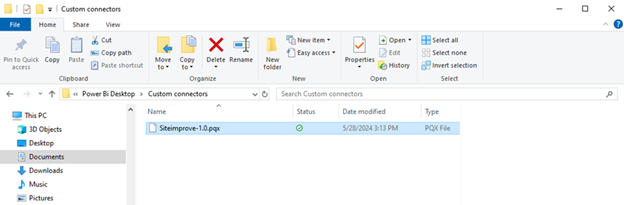
- Replace the .pqx file (from within the unzipped file folder if applicable) inside the connectors folder in the path Documents\Power Bi Desktop\Custom connectors on your computer with the new package file above.
- (Optional) If you see a “Siteimprove.mez” file under the path Documents\Power Bi Desktop\Custom connectors on your computer, remove it. The .mez file was installed with the old connector that didn't use .pqx files.
Updating the Thumbprint Value
- Locate the Windows Registry Editor program on your computer and open it. The easiest way to do that is to search for “Registry Editor.”
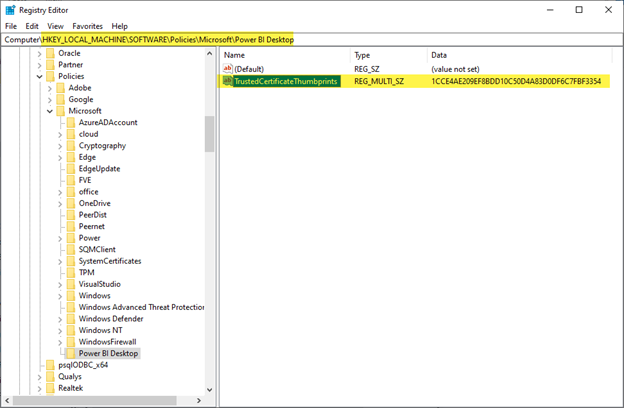
- In the Windows Registry Editor program, find the path: HKEY_LOCAL_MACHINE\Software\Policies\Microsoft\Power BI Desktop.
- Update the value field for “TrustedCertificateThumbprints” to the new Thumbprint value for the corresponding plugin listed in the Package Files, Thumbprint Values, and Updates section of this article: Install the Siteimprove Power BI Connector
Did you find it helpful? Yes No
Send feedbackSorry we couldn't be helpful. Help us improve this article with your feedback.