How do I edit a site?
Summary
You can edit a site in Siteimprove from Settings > Sites. Available actions include changing a site's name, editing user access to sites and groups, creating and applying tags, and accessing additional site editing options when crawl issues occur. Only Account Owners and Administrators can view the Manage Sites page and edit a site.
Before You Begin
- Only the Account Owners and Administrators have permission to view the Manage Sites page and to edit a site.
- Information on changing a user role can be found in the article: How do I change a user’s role?
How to Edit a Site
From the main menu go to Settings > Sites.
What actions can be taken from the Manage Sites page?
- You can change site name
- Edit user access to Sites and Groups
- Create, edit, or apply tags
Change Site Name
From the Manage Sites overview (Settings > Sites), select the site you would like to rename. Then under the Site Summary area, select the “Edit Site Name” icon next to the Sitename, rename the site, and then select the checkbox to save the Sitename. Selecting the “X” button will cancel renaming the site. 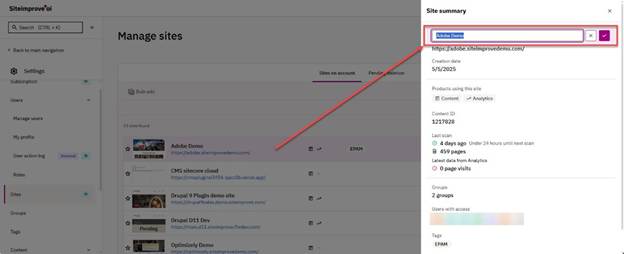
Edit User Access to Sites and Groups
For guidance, see the Help Center article: How do I edit user access to Sites and Groups in Siteimprove?
Create, Edit, or Apply Tags
Only Administrators and Account Owners have permission to create, edit, or apply tags directly from the Manage Site overview.
The Help Center article (link below), How to apply Tags to Sites and Users is intended to guide you in applying tags to sites and/or users in Siteimprove.
Other Site Editing Options
If crawls show “Scan Failed” there may be more options for editing sites available under the “View resolution options” button for Account Owners, such as editing the Site URL.
Editing the site URL should be done with caution as that can have an impact on the data collected by Siteimprove outlined more here: How can changing my website URL affect my Siteimprove data?
You can read more here about Crawl errors, explained.
Related Articles
Did you find it helpful? Yes No
Send feedback